手册 v0.1.0 · KaiderBooks v2.0.0 · 2026-08-02
Step 5 · Supplier bills and payments
In one sentence
A supplier issued a proper invoice (letterhead, UEN) → this route: create the supplier → record the bill → record the payment when you actually pay. Three separate steps, so you always know who you still owe.
1. Why not one step like Step 4
Because a bill has two moments in time:
- The day the invoice arrives — you owe the money (but haven't paid)
- The day you actually transfer — the money leaves
Those can be 30 days apart. Recording them separately is what lets the system tell you "who do I have to pay this month".
If you pay on the spot, you still do both steps — just with the same date.
2. Create the supplier first
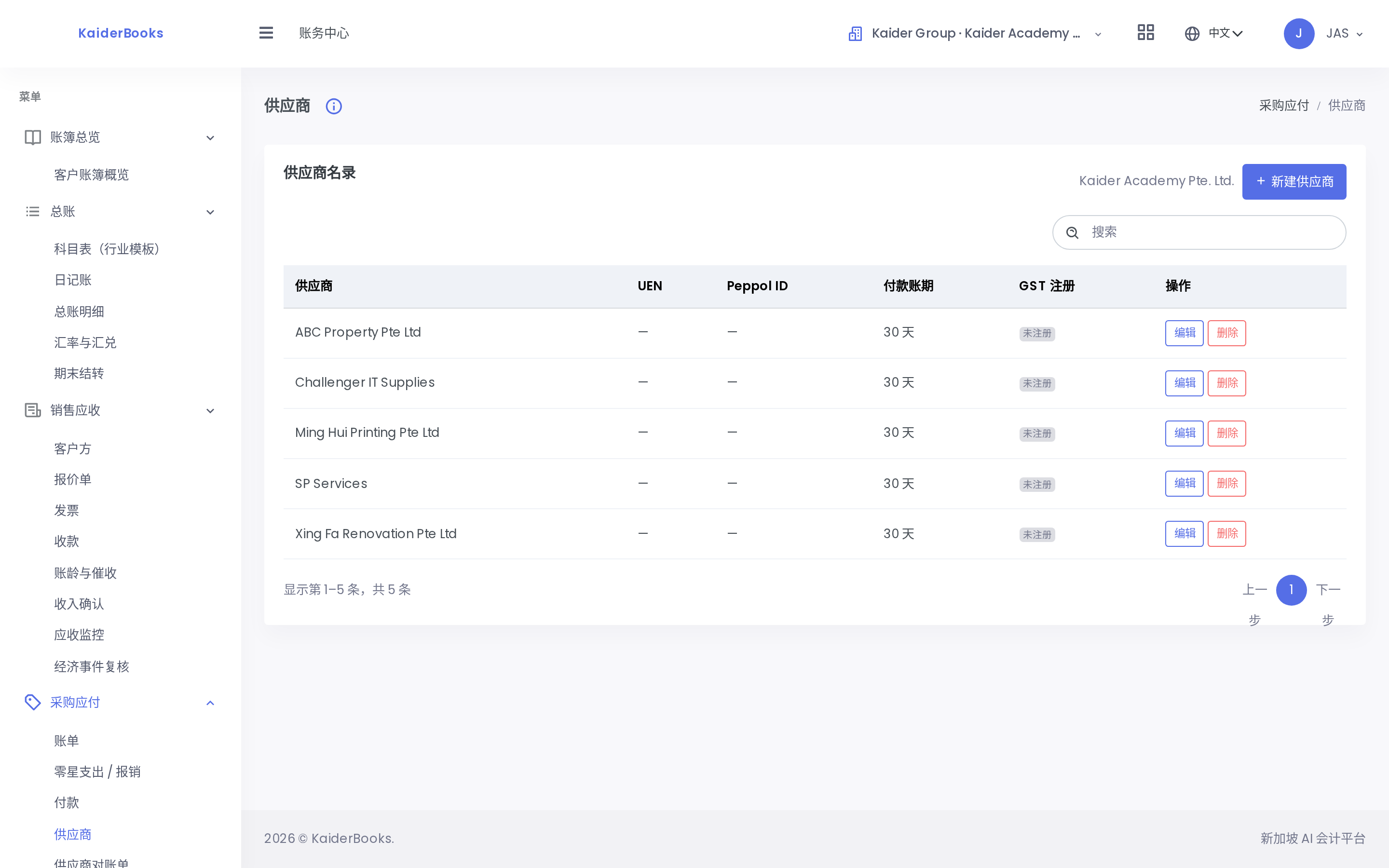
Books → Purchases (AP) → Suppliers → New
| Field | Notes |
|---|---|
| Name | The full company name on the invoice |
| UEN | From the invoice; leave blank if absent |
| Payment terms | Usually 30 days — check the contract |
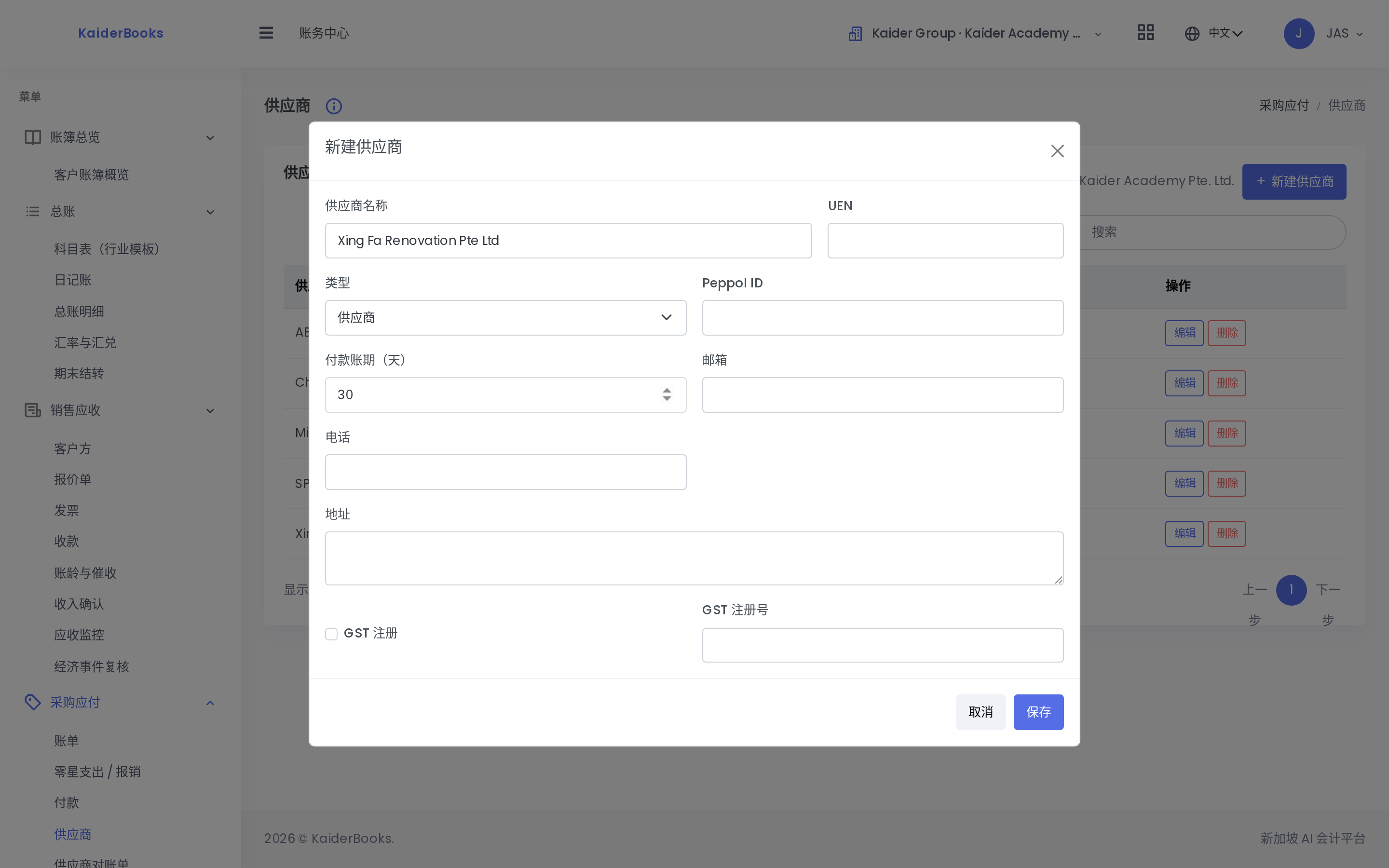
1
The full company name on the invoice
2
Payment terms, usually 30 days
Create each supplier once; afterwards you just pick them.
Search before you create
There's a search box above the list. Check whether they already exist — duplicates make "how much do we owe them" wrong.
3. Record the bill
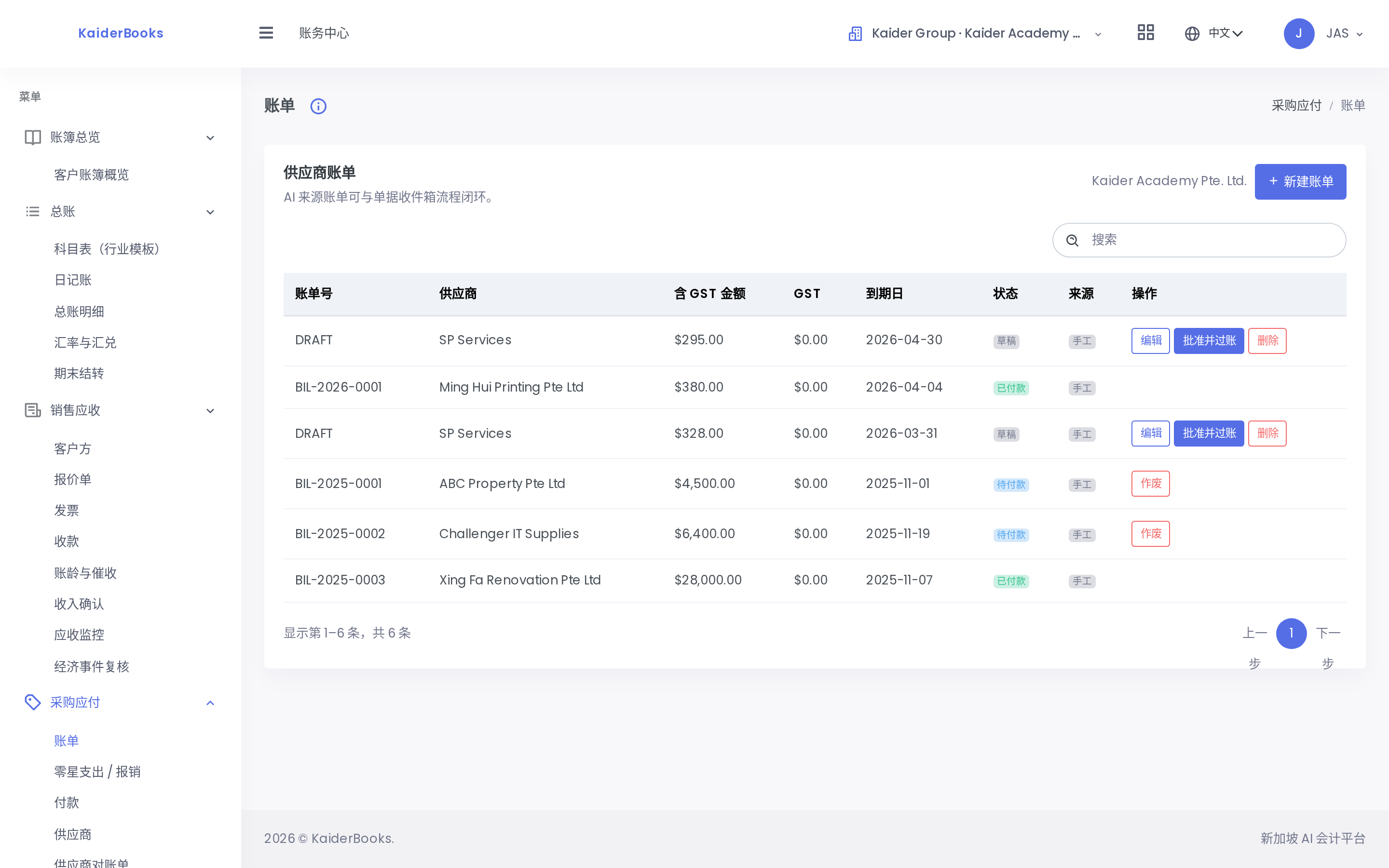
1
Record a supplier invoice from here
Books → Purchases (AP) → Bills → New Bill
The entry dialog that opens looks like this:
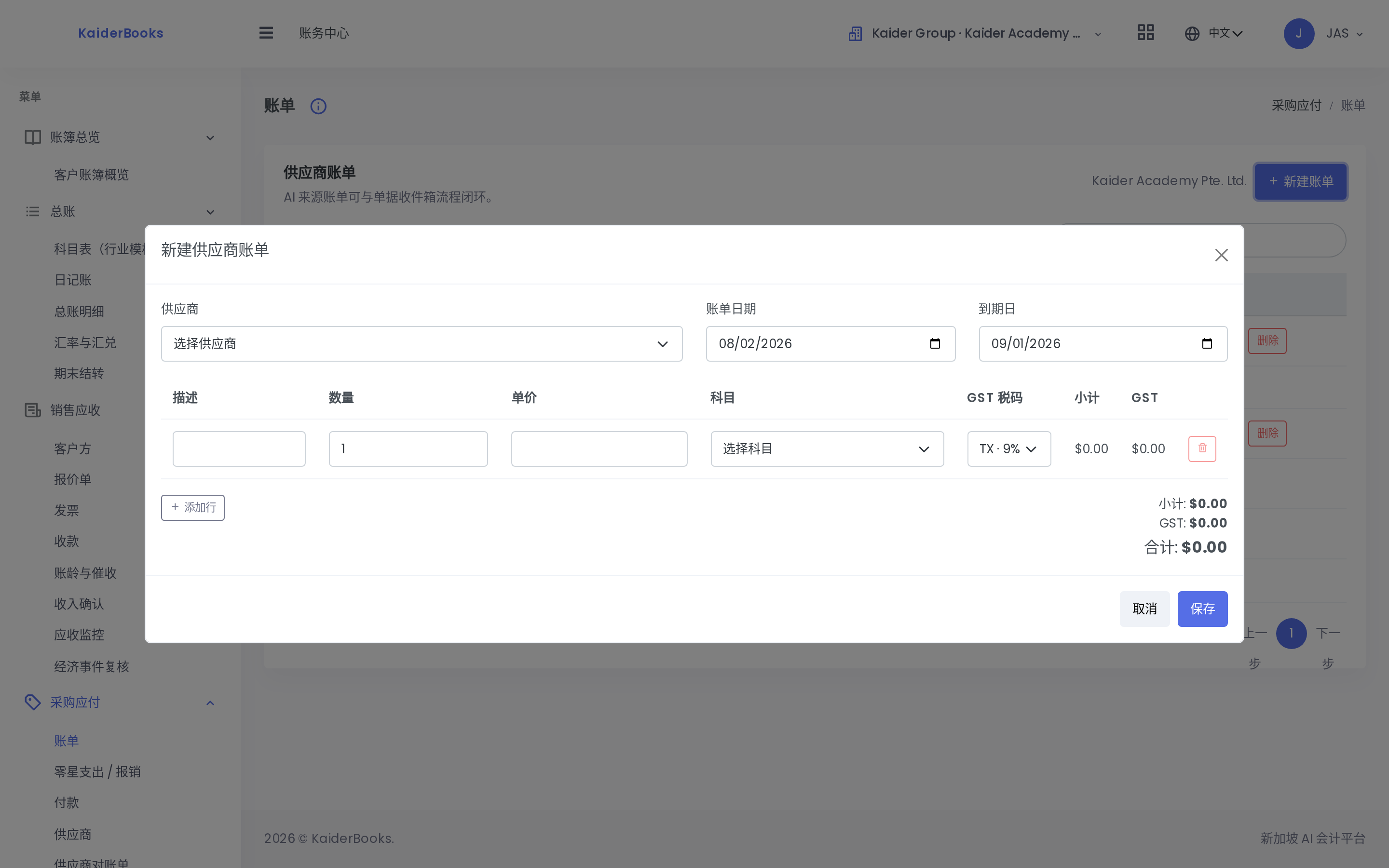
1
Pick the supplier first
2
The issue date printed on the invoice
3
Due date = issue date + terms
4
Line account — renovation to 1440 (asset), rent to 5300 (expense)
5
Not GST-registered → always NG (0%)
| Field | What to enter |
|---|---|
| Supplier | The one from section 2 |
| Issue date | The date printed on the invoice |
| Due date | From the invoice, or issue date + terms |
| Supplier ref | The invoice number — you'll need it later |
| Lines | Each: description / qty / unit price / account / GST code |
Choosing the account: exactly the same judgement as Step 4 — renovation to 1440 (asset), rent to 5300 (expense).
GST code: the Academy isn't GST-registered — pick NG.
One invoice can be split across lines
If a renovation invoice covers $28,000 of works plus $500 of delivery, split it into two lines on two accounts. Split when it makes sense — far easier than reclassifying later.
A new bill is a Draft. Once checked, press Approve & Post on that row. A confirmation appears:
Approve and Post Bill — This assigns the formal bill number and posts the accounting journal. Continue?
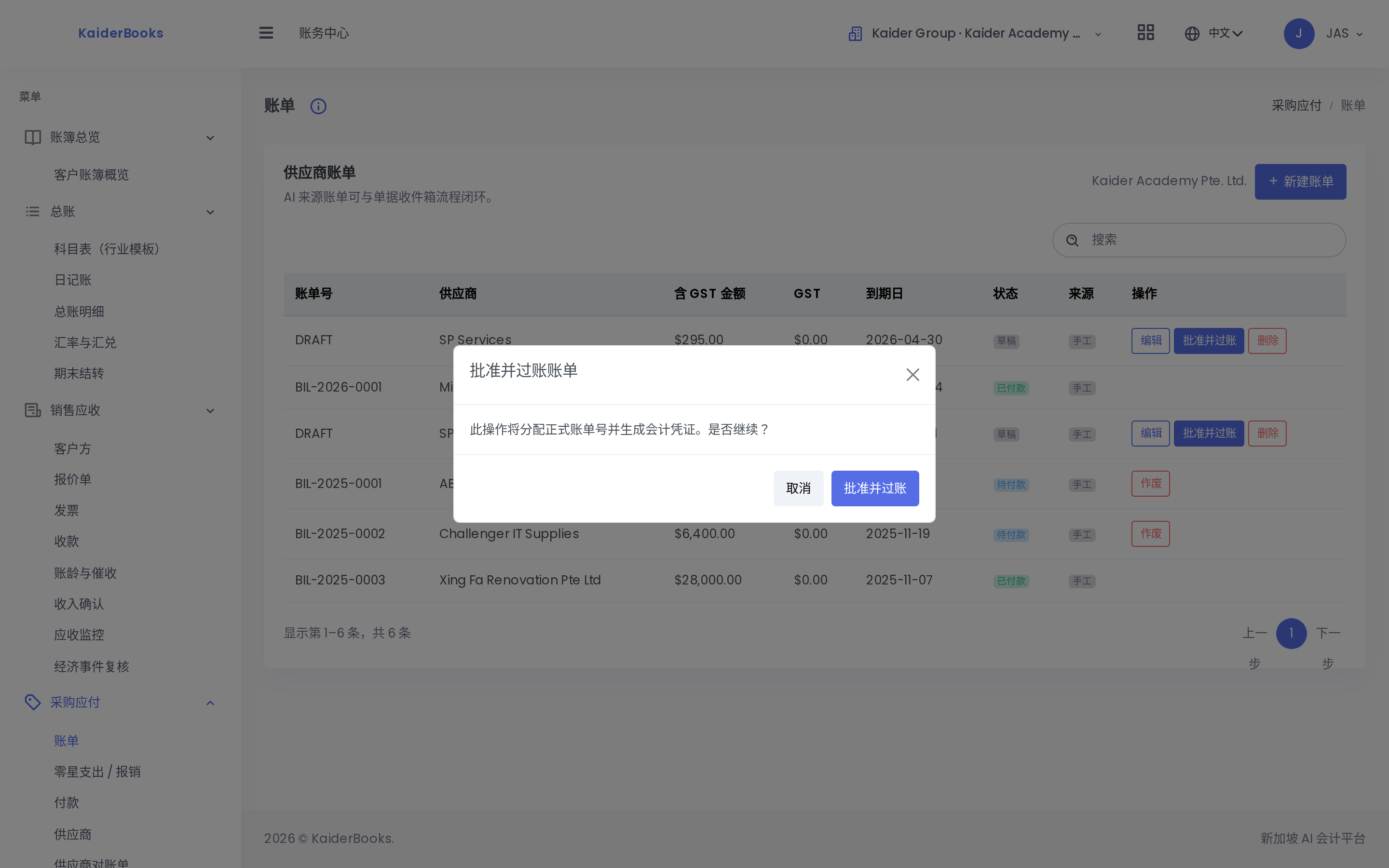
1
🔴 Must confirm here — dismissing leaves it a draft
⚠️ You must press "Approve & Post" inside the dialog. Clicking the row button and then dismissing the dialog leaves the bill as a draft.
On success the number changes from DRAFT to a real one (e.g. BIL-2026-0001) and the status becomes Awaiting Payment.
4. Payment
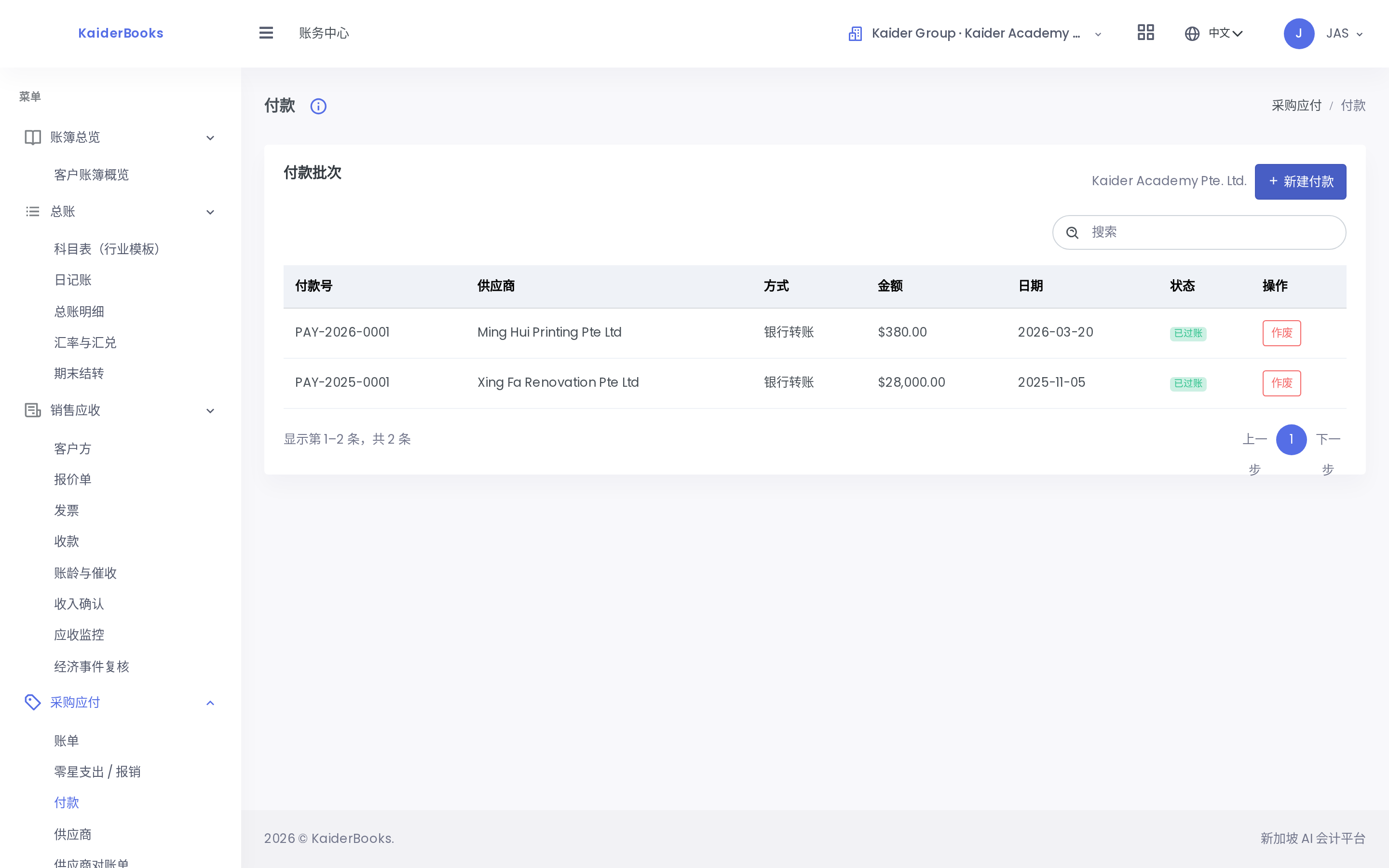
1
Record a payment from here
Books → Purchases (AP) → Payments → New
1
Record a payment from here
| Field | What to enter |
|---|---|
| Supplier | The one you're paying |
| Payment date | The day the money actually left |
| Method | transfer / payNow / cheque / giro |
| Bank account | DBS Current Account |
| Reference | The bank reference — you'll reconcile against it |
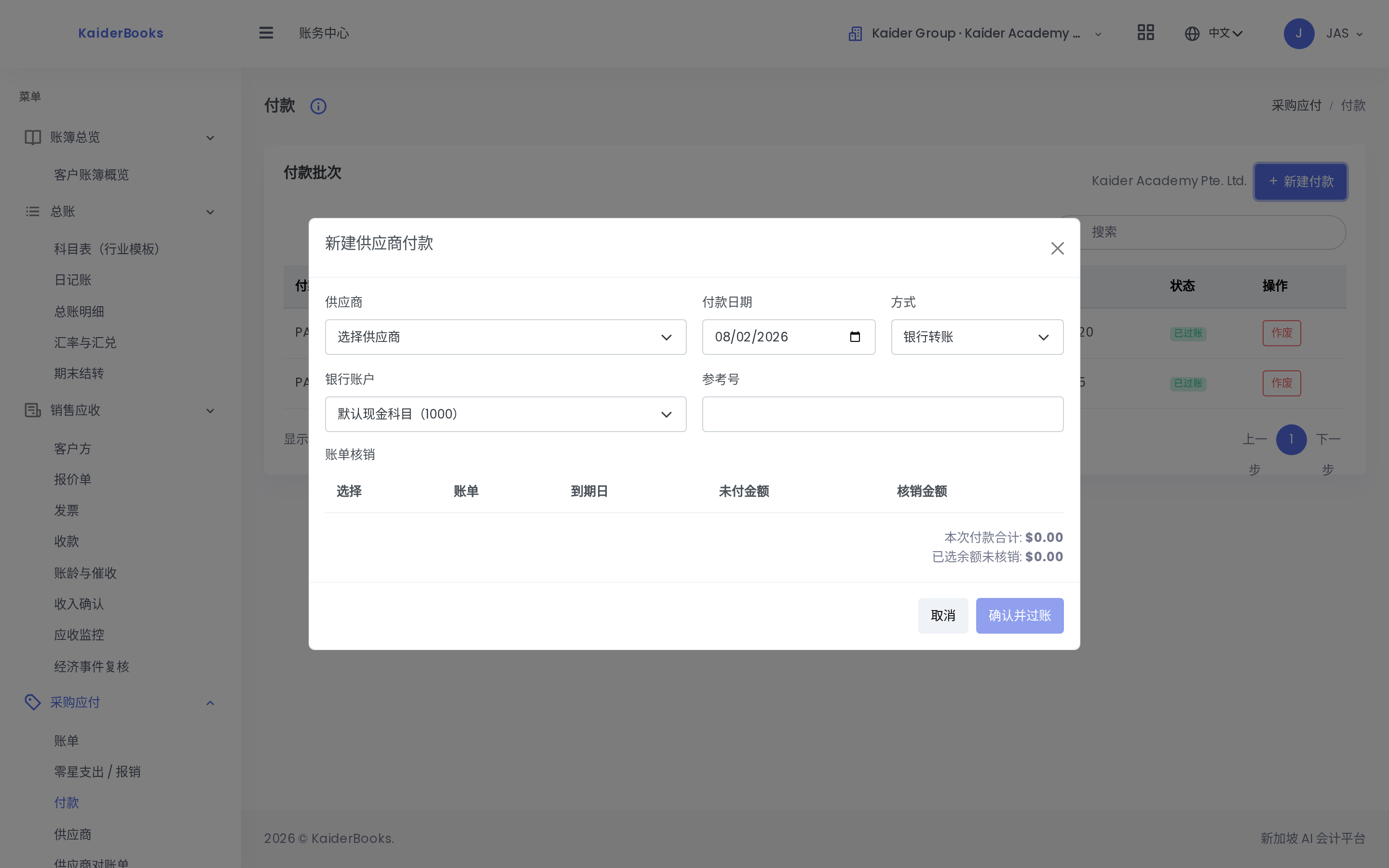
| Allocation | Tick which bill this pays, and how much |
⚠️ Order matters: the bill allocation rows only appear after you pick the supplier — the system needs to know who, before it can list their open bills. So pick the supplier first.
Tick the bill row, enter the amount under Allocation, then press Confirm & Post.
Back on the Bills page, that bill will now show Paid.
Part payments are fine: a $28,000 bill paid $10,000 now becomes "partially paid" and the balance stays outstanding.
5. Knowing who you still owe
Books → Purchases (AP) → Aging — every unpaid balance by supplier, bucketed by how overdue it is.
Look at this page once at every month end. It's the most basic discipline there is.
6. Common mistakes
| Mistake | Consequence | Avoid it by |
|---|---|---|
| Forgetting to Approve, leaving drafts | The bill isn't on the books at all | Approve as soon as you've checked it |
| Recording both the bill and the payment as expenses | Costs doubled | Payments must be allocated to a bill, never entered as a separate expense |
| Putting proper invoices through Step 4 | Payables can't be tracked | Proper invoice → this route |
| Duplicate suppliers | Balances split across two names | Search before creating |