手册 v0.1.0 · KaiderBooks v2.0.0 · 2026-08-02
Step 2 · Set up your books yourself (once, before you start)
In one sentence
Before your first entry the books need five things: company → accounts → purchase tax code → dimension → CPF rates.
John has already created part of it (so you don't copy dozens of rows), and left the rest for you to build by hand — you'll be adding these yourself from now on, so the first time should be yours. Every field value you need is on this page.
| Status | What you do | |
|---|---|---|
| Company | ✅ already created | Just verify it against section 1 so you know the fields |
| Accounts | ⏳ 18 created, 3 left for you | Create 1440 / 2610 / 5990 — one asset, one liability, one expense |
Purchase tax code NG | ❌ not created | You create it |
phase dimension | ❌ not created | You create it |
| CPF rates | ❌ not created | You create it |
About 20 minutes. Don't start entering documents until this page is done.
1. The company (already created — just verify)
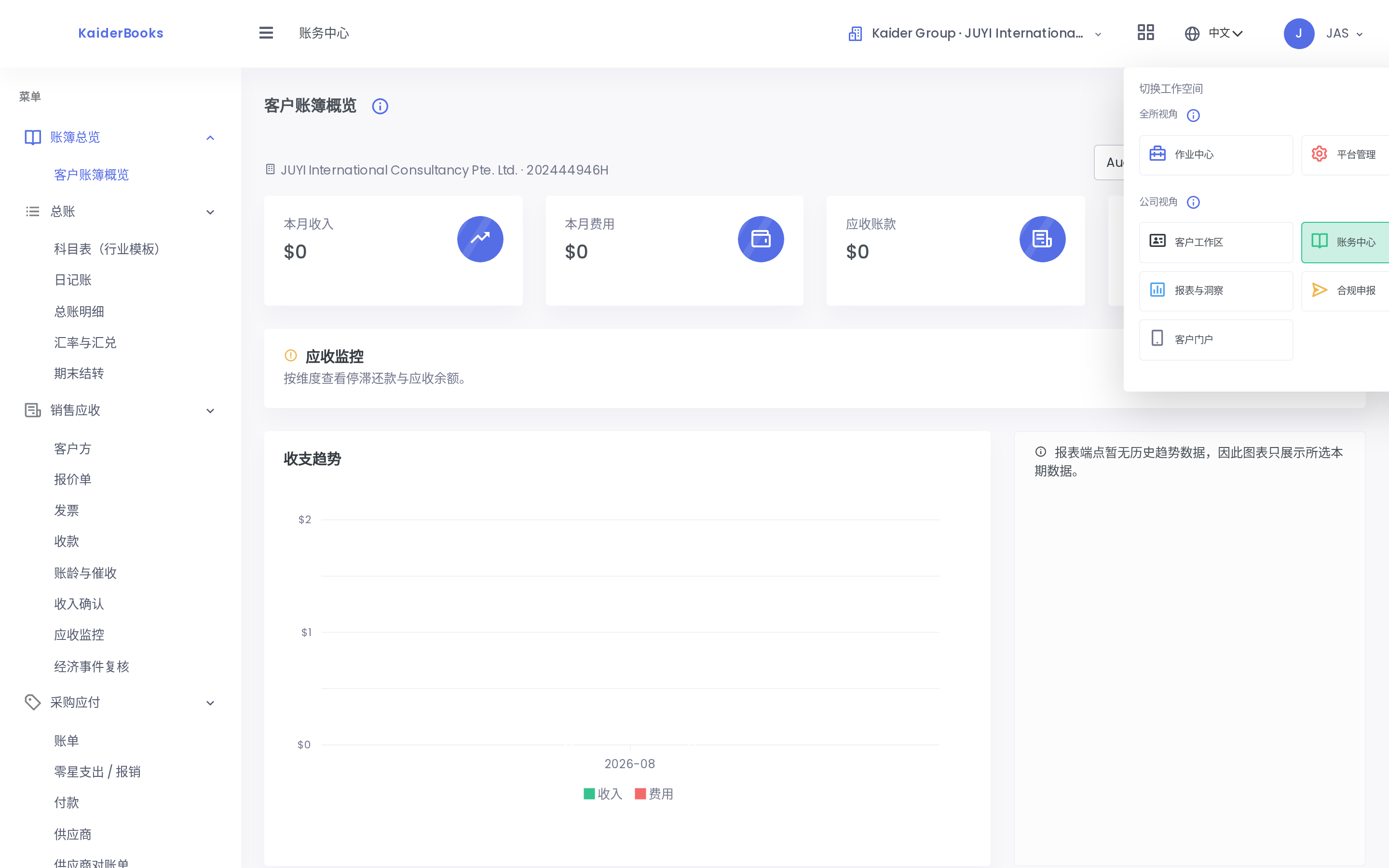
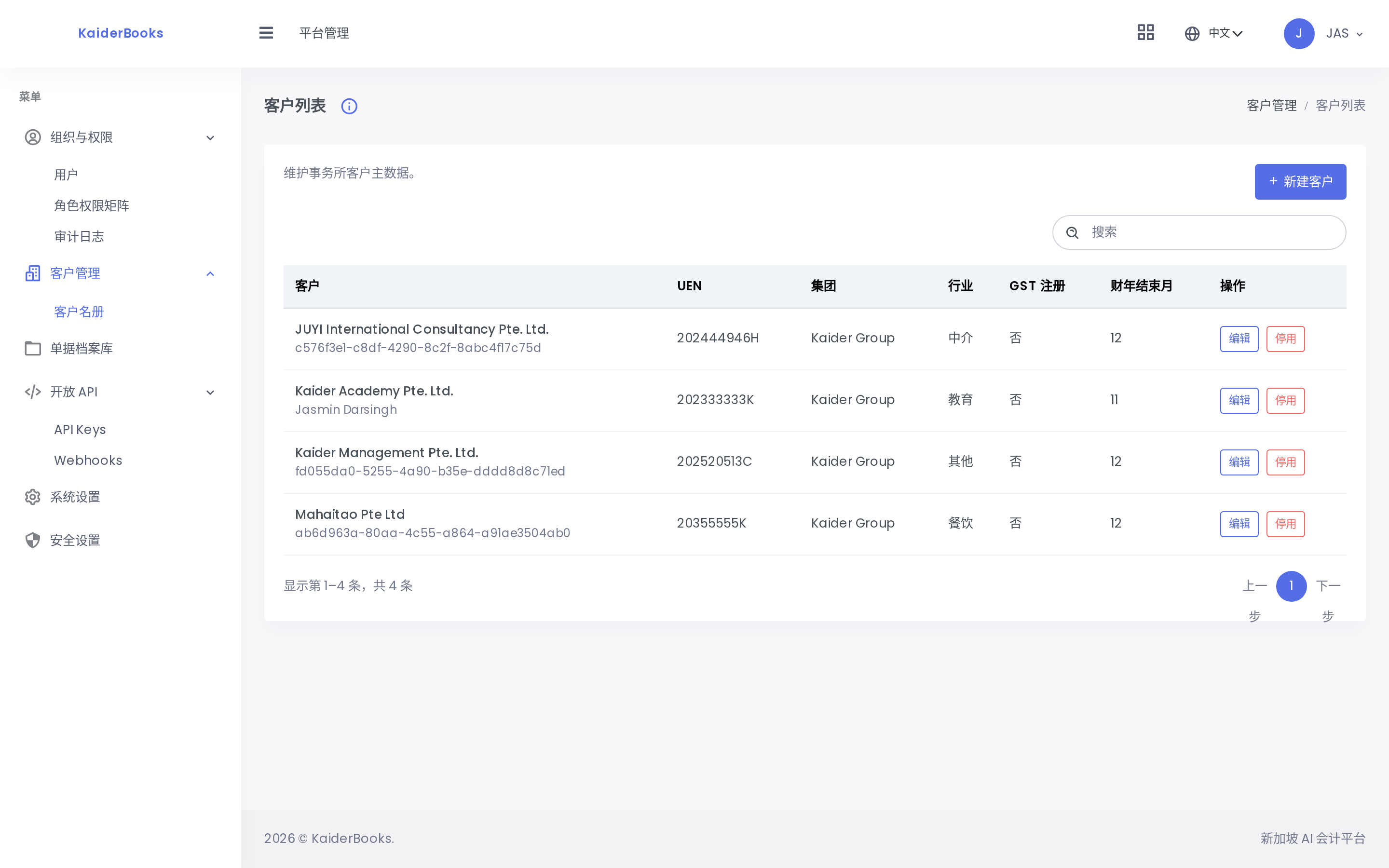
Where: grid icon (top right) → Admin → Client management → Client List
1
1. Click this grid icon (top right)
1
Create a company from here
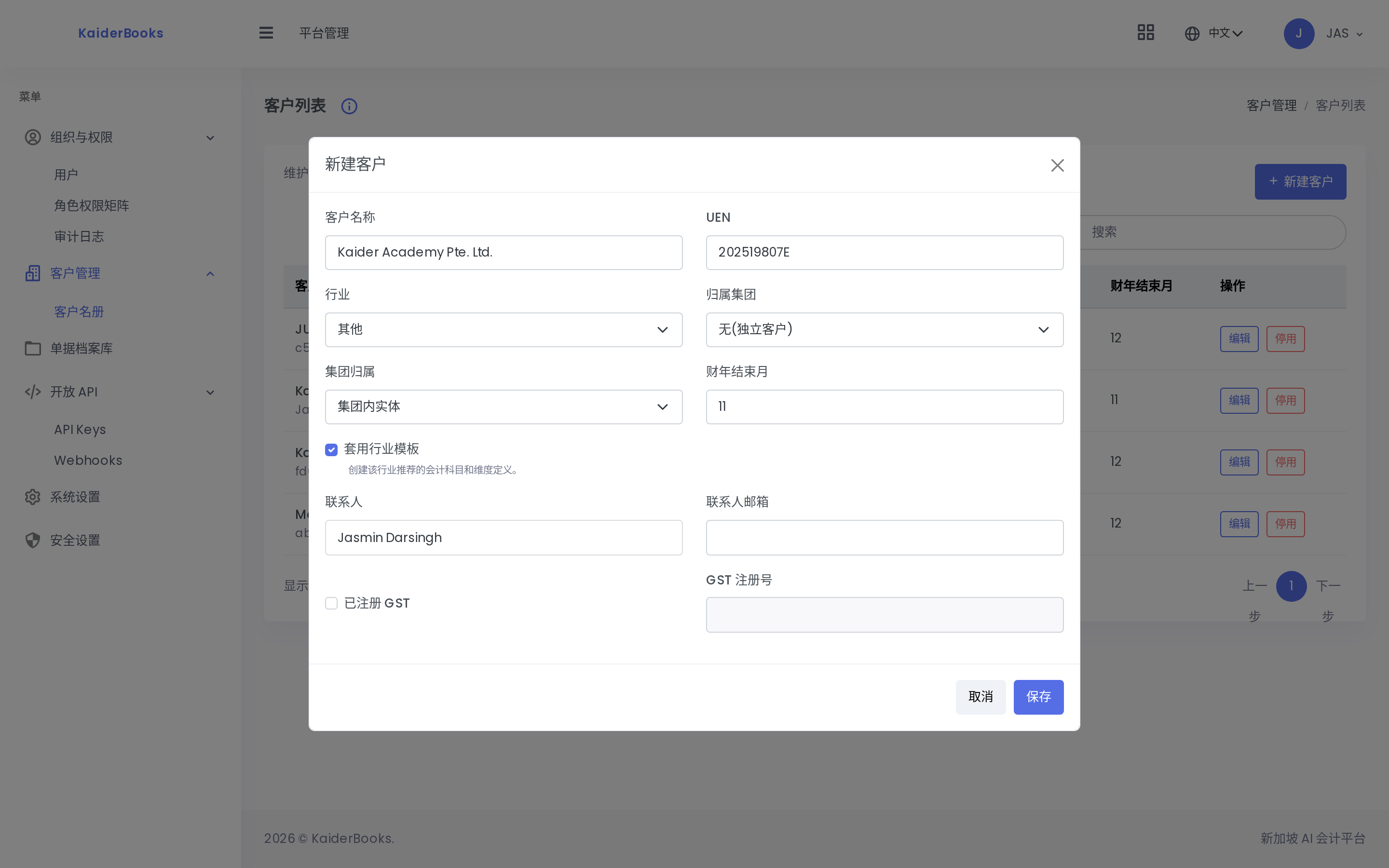
Kaider Academy Pte. Ltd. should already be in the list. Open its Edit and look; this is what was entered:
1
The UEN prints on invoices - not a character wrong
2
Pick Education - brings in 45 base accounts
3
Must tick, or the chart is empty
| Field | Value | Notes |
|---|---|---|
| Client Name | Kaider Academy Pte. Ltd. | Full legal name, as per ACRA |
| UEN | 202519807E | ⚠️ Prints on invoices to parents and corporate clients — not a character wrong |
| Industry | Education | Brings in a base education chart of accounts (45 accounts) |
| Parent group | Kaider Group | The Academy is a group entity |
| Group classification | Group entity | Not an external managed client |
| FY End Month | 11 | Financial year ends November (group-wide) |
| Apply industry template | ✅ ticked | Without it the chart would be empty |
| Contact Name / Email | Jasmin Darsingh / your work email | |
| GST registered | ❌ not ticked | The Academy isn't GST-registered |
Please verify the UEN yourself
Check that the UEN reads 202519807E. It is the one field that, if wrong, ends up printed on documents you send out — fixing it now is still cheap.
To create another company later, it's this same New Client button, with the same fields.
2. Accounts (18 created, you create 3)
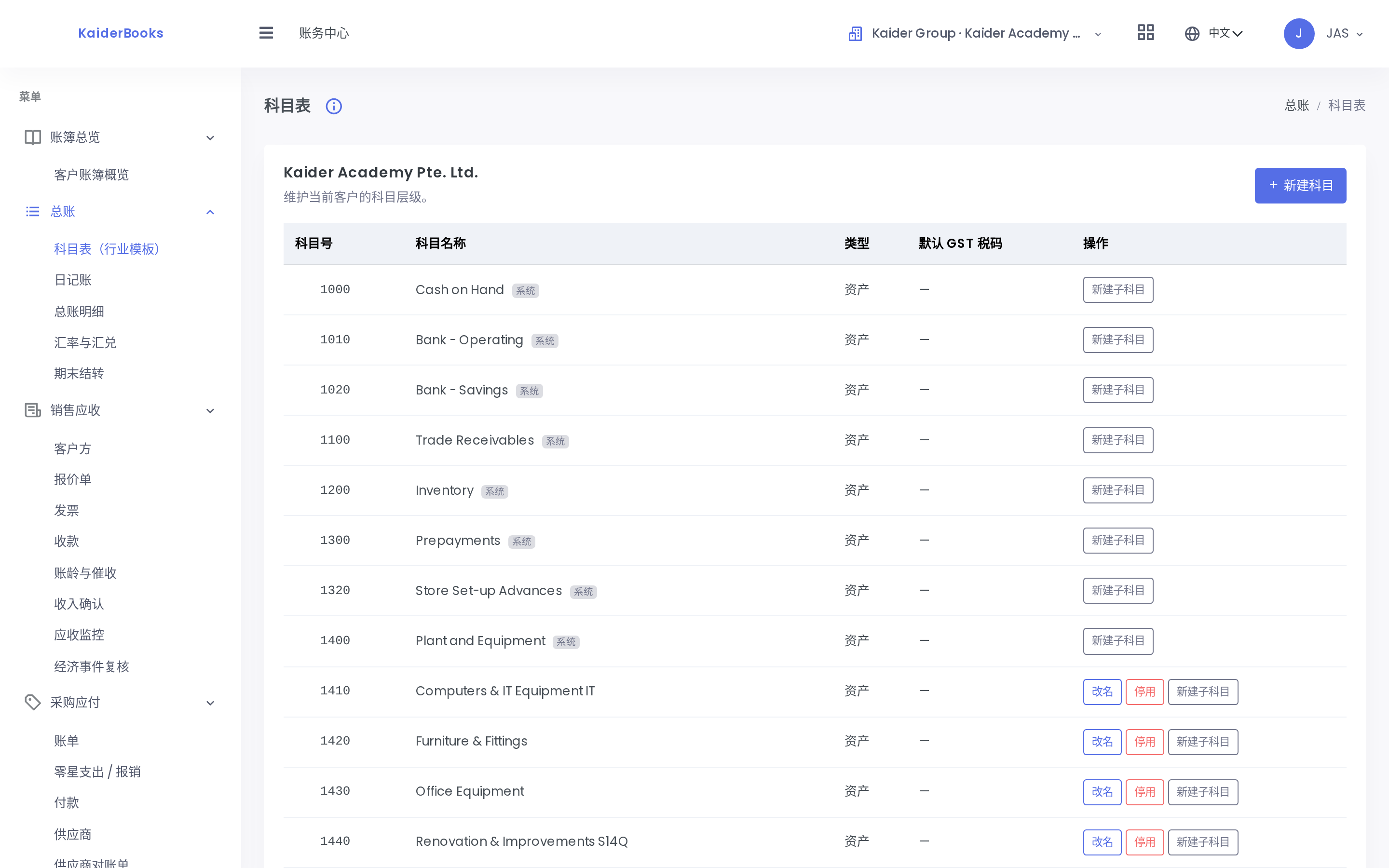
Switch company first: open Books, click the company button at the top → pick Kaider Academy Pte. Ltd.Where: Books → General Ledger → Chart of Accounts
1
Add accounts here, one at a time
You'll see 63 accounts (45 from the education template + 18 pre-created). Press New Account to open the dialog:
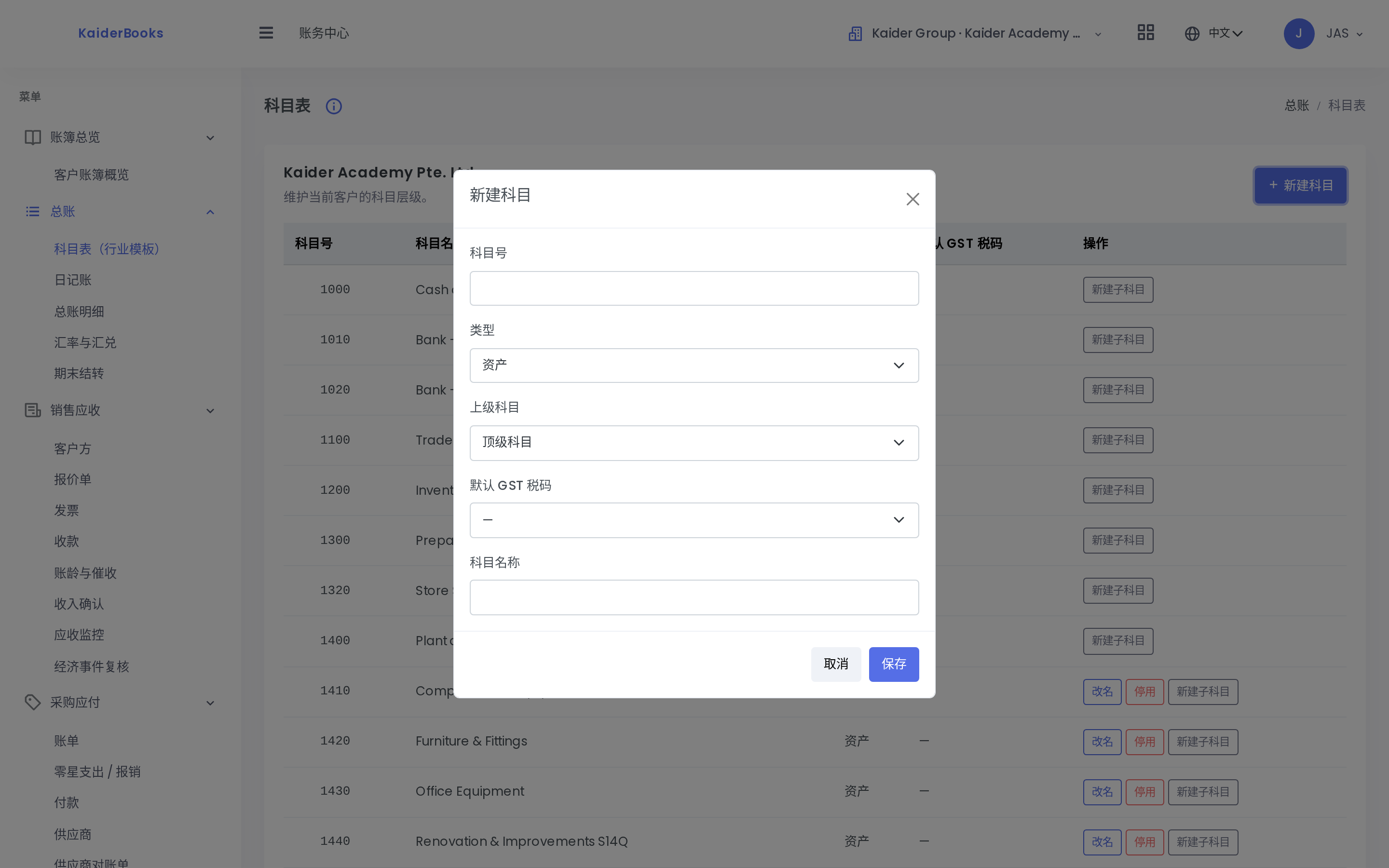
These 3 are yours to create — one asset, one liability, one expense. The Type differs for each, so building one of each teaches you the whole thing:
| # | Code | Name | Type |
|---|---|---|---|
| 1 | 1440 | Renovation & Improvements (S14Q) | Asset |
| 2 | 2610 | Staff Reimbursement Payable | Liability |
| 3 | 5990 | Sundry Expenses | Expense |
Press Save after each, then New Account for the next.
What these three are for
1440Renovation — renovation goes under Section 14Q in Singapore: deducted over 3 years, capped at S$300,000 per 3-year period. It is an asset, not an expense, so Type must be Asset.2610Staff Reimbursement Payable — when a staff member pays out of pocket, the credit goes here (the company owes them). Without it, the expenses page in Step 4 will refuse to post.5990Sundry Expenses — the catch-all. When you genuinely don't know where something belongs, put it here and move on. A missing entry is a real problem; a mis-classified one can be moved any time.
The 18 John already created (nothing to do — but know they exist)
Fixed assets (Type = Asset)
| Code | Name | Why separate |
|---|---|---|
1410 | Computers & IT Equipment | Section 19A — written down within one year |
1420 | Furniture & Fittings | 3 years |
1430 | Office Equipment (TV / projector / aircon) | 3 years |
Liability (Type = Liability)
| Code | Name | Used when |
|---|---|---|
2600 | Due to Director | The boss pays for something personally — the credit goes here |
Expenses (Type = Expense)
5810 Office Supplies & Stationery · 5820 Repairs & Maintenance · 5830 Marketing & Advertising · 5840 Telecom & Internet · 5850 Insurance · 5860 Travel & Transport · 5870 Staff Welfare & Training · 5880 Printing & Postage · 5890 Software & Subscriptions · 5920 Teaching Materials · 5930 Government Fees & Licences · 5940 Cleaning & Sanitation · 5950 Recruitment · 5960 Entertainment (added back for tax)
Why fixed assets are split into four
1410 computers / 1420 furniture / 1430 office equipment / 1440 renovation — these four have completely different deduction rules for Singapore tax (computers one year, furniture and equipment three years, renovation 14Q over three years with a cap).
Lump them into one account and someone re-sorts hundreds of receipts at year end.
Count them yourself when done: the chart should total 63 + 3 = 66.
3. Create the purchase tax code NG (you)
Where: Books → GST → Tax Codes → New
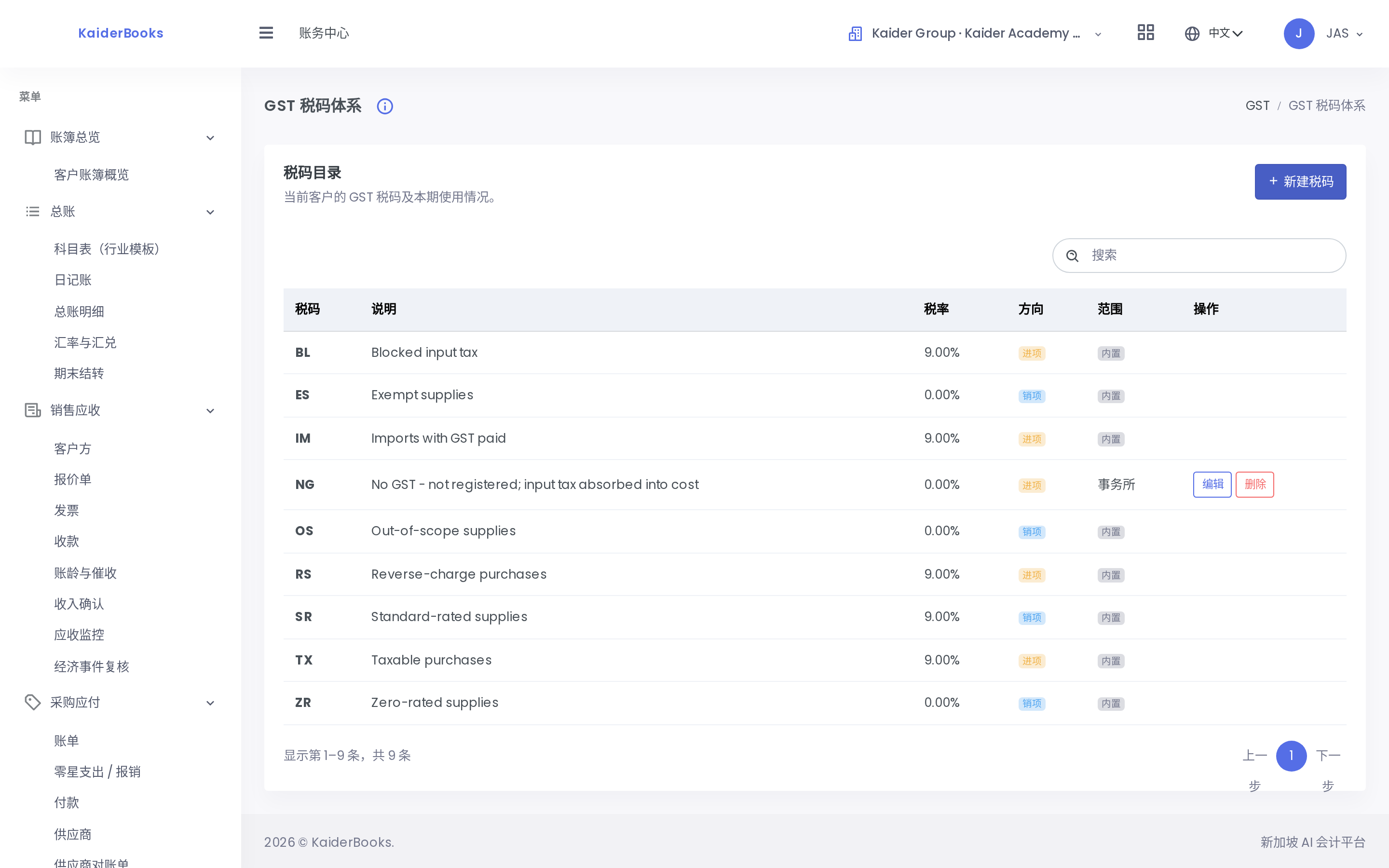
1
Create the NG purchase code here
| Field | Value |
|---|---|
| Code | NG |
| Description | No GST - not registered; input tax absorbed into cost |
| Rate (basis points) | 0 |
| Direction | input (purchases) |
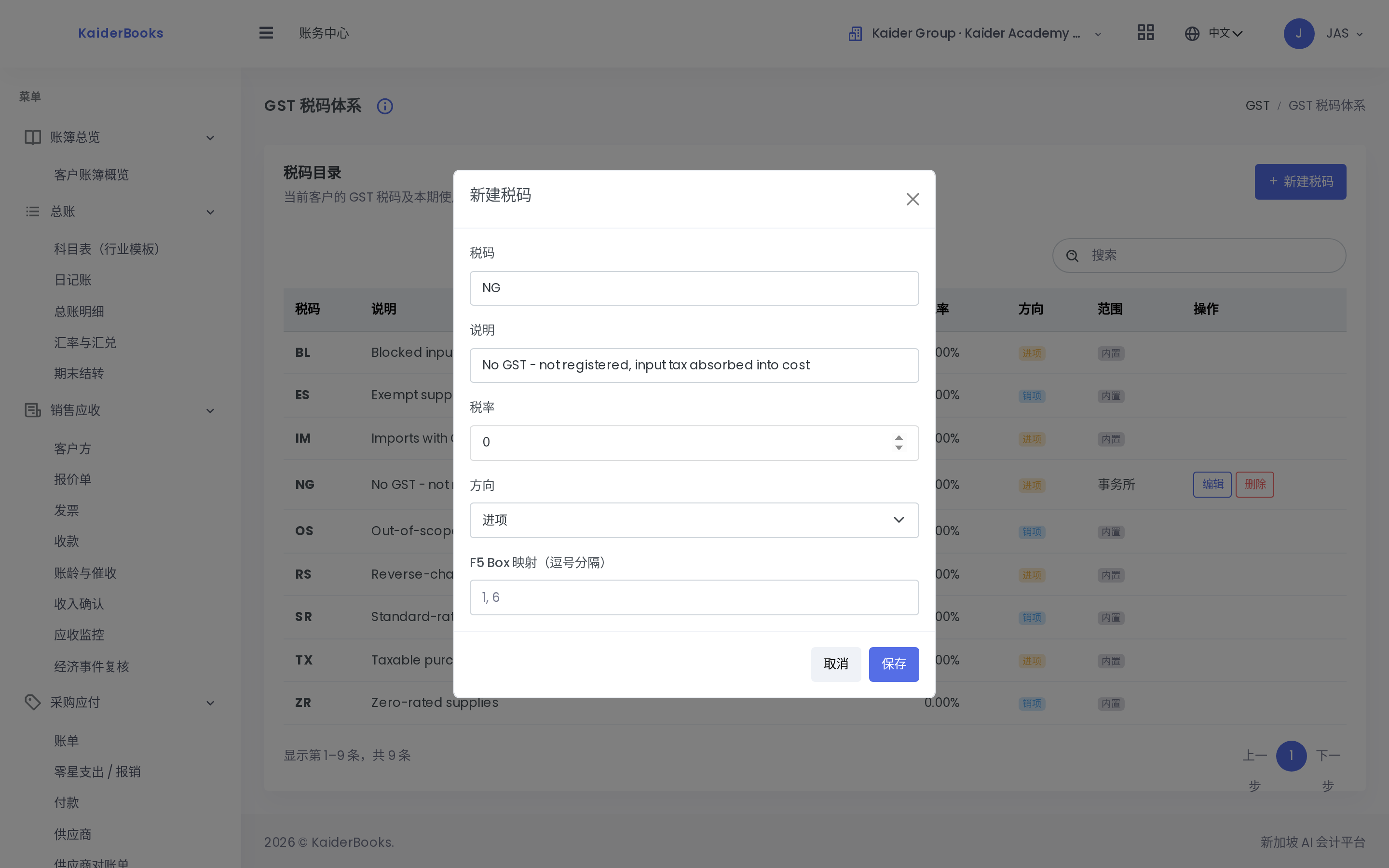
1
Code is NG
2
Rate 0 - input tax is not reclaimable
3
Direction must be input (purchases)
Why this one is mandatory
The Academy is not GST-registered, so GST charged by suppliers cannot be reclaimed — it is simply part of the cost.
But the built-in purchase codes are only TX / BL / IM / RS, and all four are 9%. Use TX and the system books 9% of input GST that the Academy cannot actually claim — the books go wrong.
So you create a 0% purchase code. From then on, every purchase document (bills, expenses) uses NG.
4. Create the phase dimension (you)
Where: Books → Settings → Dimensions → New
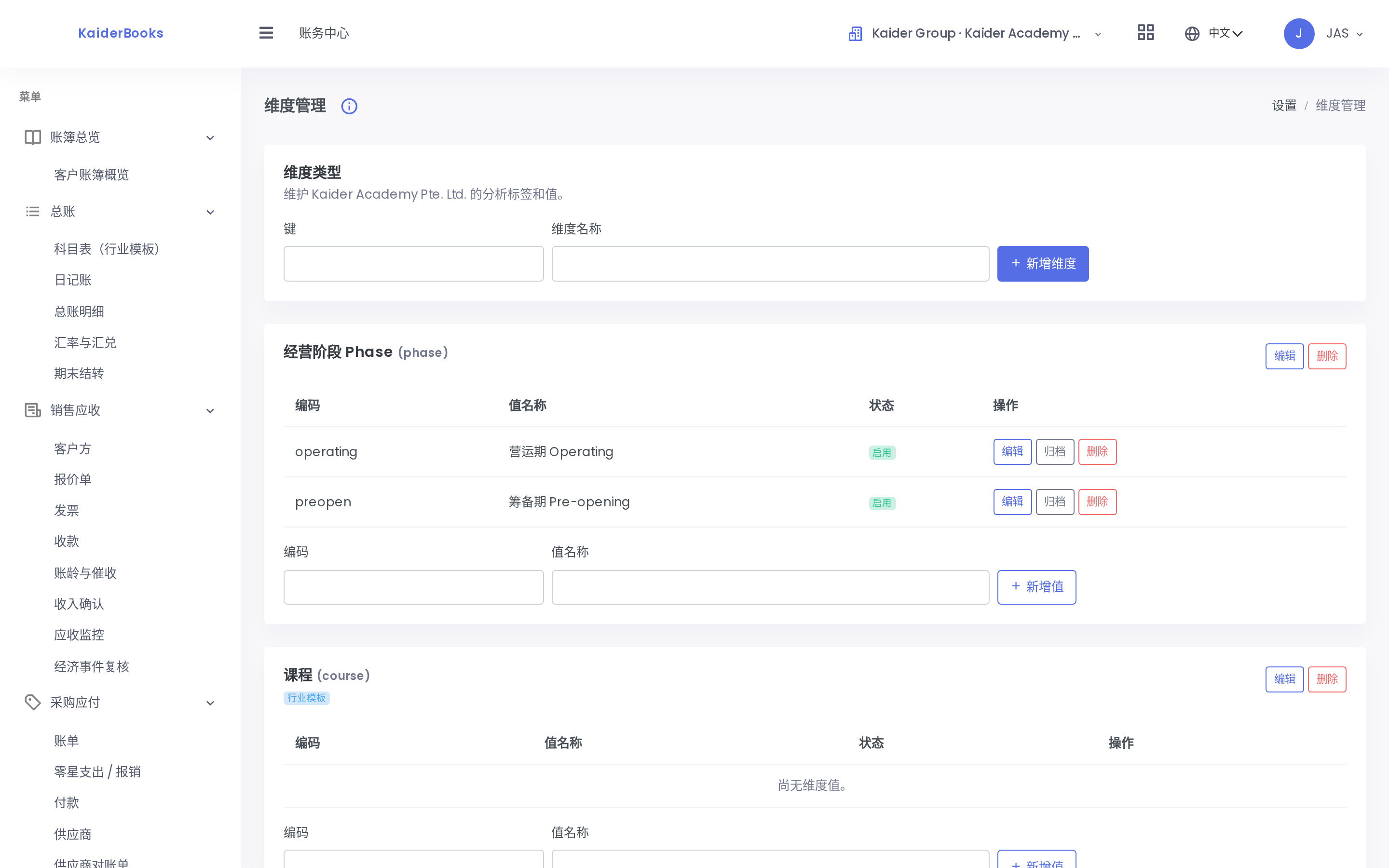
| Field | Value |
|---|---|
| Key | phase |
| Name | Business phase |
| Sort order | 1 |
Then add two values under it:
| Code | Name |
|---|---|
preopen | Pre-opening |
operating | Operating |
Why not just create a "pre-opening costs" account
That would lump the setup period's rent, stationery, renovation and legal fees into one blob — you would see neither what the money went on, nor be able to split it at tax time.
With a dimension you can answer both:
- "How much did the setup period cost?" → total by dimension
- "How much on stationery in total?" → total by account
When entering, pick Pre-opening for anything before the first day of classes, Operating after.
5. Create the CPF rate table (you — mandatory before payroll)
Where: Books → Settings → CPF rates → New Rate Set
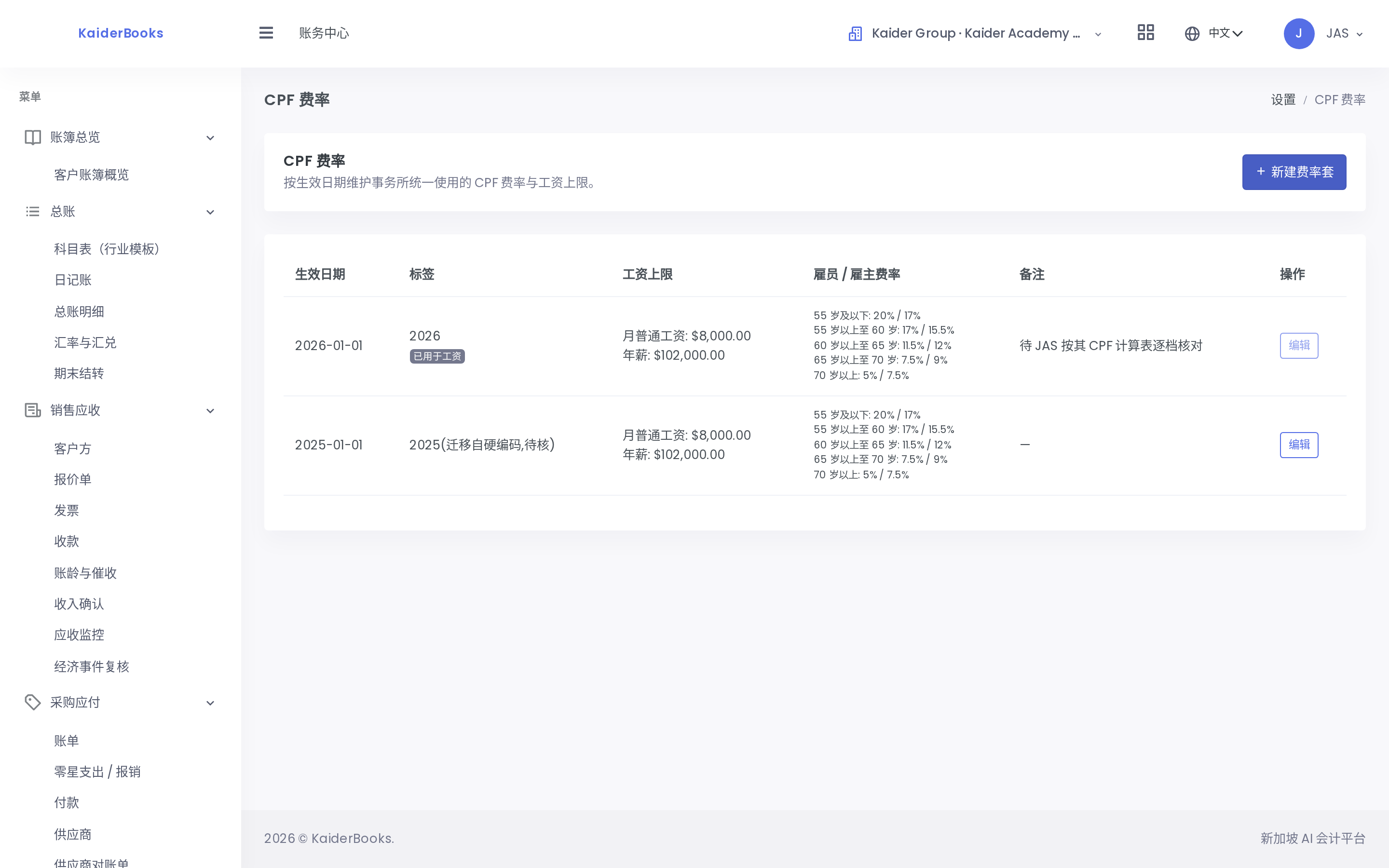
1
Create the 2026 rate set here
| Field | Value |
|---|---|
| Label | 2026 |
| Effective From | 2026-01-01 |
| Monthly OW ceiling | 8000 |
| Annual wage ceiling | 102000 |
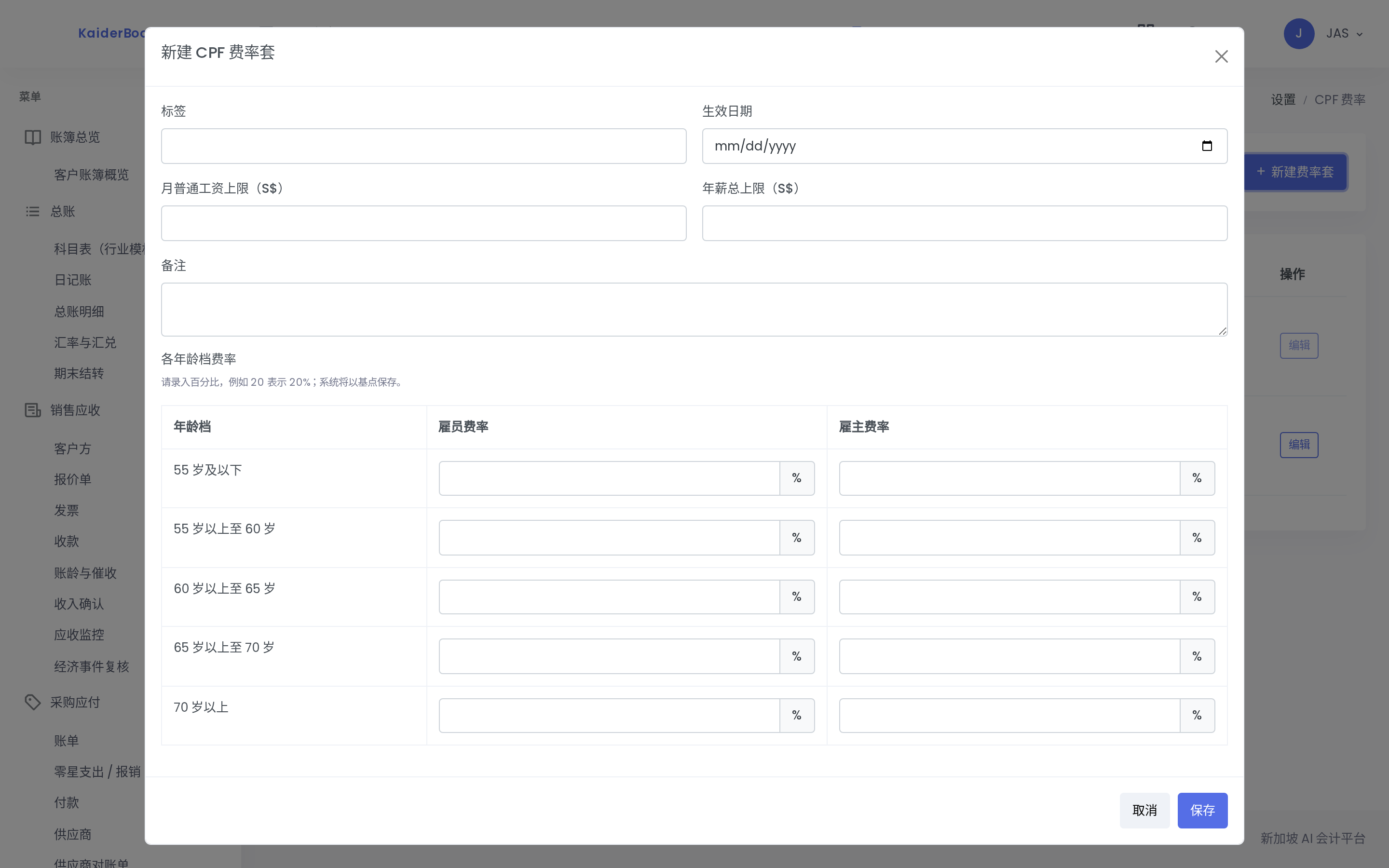
Five age bands, entered as percentages (type 20 for 20%):
| Age band | Employee % | Employer % | (Total) |
|---|---|---|---|
| 55 and below | 20 | 17 | 37% |
| Above 55 to 60 | 18 | 16 | 34% |
| Above 60 to 65 | 12.5 | 12.5 | 25% |
| Above 65 to 70 | 7.5 | 9 | 16.5% |
| Above 70 | 5 | 7.5 | 12.5% |
Where this table came from, and why you must still check it
These figures were copied on 2026-08-02 straight from the CPF Board's CPF Contribution Rate Table from 1 January 2026, Table 1 (Singapore Citizens / SPR 3rd year onwards, total wages > $750).
You also hold a CPF calculation table — check it against the above, band by band, before entering.
If they disagree, don't enter anything — ask John which one is stale. Singapore has raised the rates for workers above 55 every January since 2022, so it is easy to be holding an outdated table.
⚠️ There is also a set labelled "2025 (migrated from hard-coded, to be verified)" already in the system. Those are the old code's values and the 55–60 and 60–65 bands are out of date. Your new 2026 set has a later effective date, so the system uses yours. Leave the old one alone — don't delete or edit it.
6. Check your work
| Check | Should be |
|---|---|
| Kaider Academy's UEN in the client list | 202519807E |
| Total accounts | 66 |
| Tax codes include | NG, 0%, input |
| Dimensions include | phase, two values |
| CPF rate sets include | 2026, effective 2026-01-01, five bands |
If anything doesn't match, fix it before moving on. Every later step builds on these five — a missing account here becomes a blocked entry in Step 4.
Once it all matches, go to Step 3 · The chart of accounts.