手册 v0.1.0 · KaiderBooks v2.0.0 · 2026-08-02
Financial statements
In one sentence
Once the journals are in and the month is locked, the statements produce themselves — the P&L shows whether the month made money, the balance sheet shows what the business is worth, the cash flow shows where the money went, and the ledger detail is how you trace any figure back to a single entry.
1. Where the reports live
| Report | Location | What it answers |
|---|---|---|
| Profit & Loss | Insights → Financial Reports → Profit & Loss | How much was earned over a period |
| Balance Sheet | Insights → Financial Reports → Balance Sheet | What the business is worth at a point in time |
| Cash Flow | Insights → Financial Reports → Cash Flow | How cash moved over a period |
| Trial Balance | Books → General Ledger → Period Close | Month-end checking and the audit file |
| General Ledger Detail | Books → General Ledger → Ledger Detail | Every movement on a single account |
GST F5 is not covered here — it sits in the Filing subsystem, see the next chapter.
Reports count posted and reversed journals only
Draft journals do not reach the reports. The reporting basis is status IN ('posted','reversed') — Manual journals and reversals explains why reversed journals are still counted. The practical reminder: when a figure looks wrong, first check whether a journal that should have been posted is still sitting in draft.
2. Profit & Loss
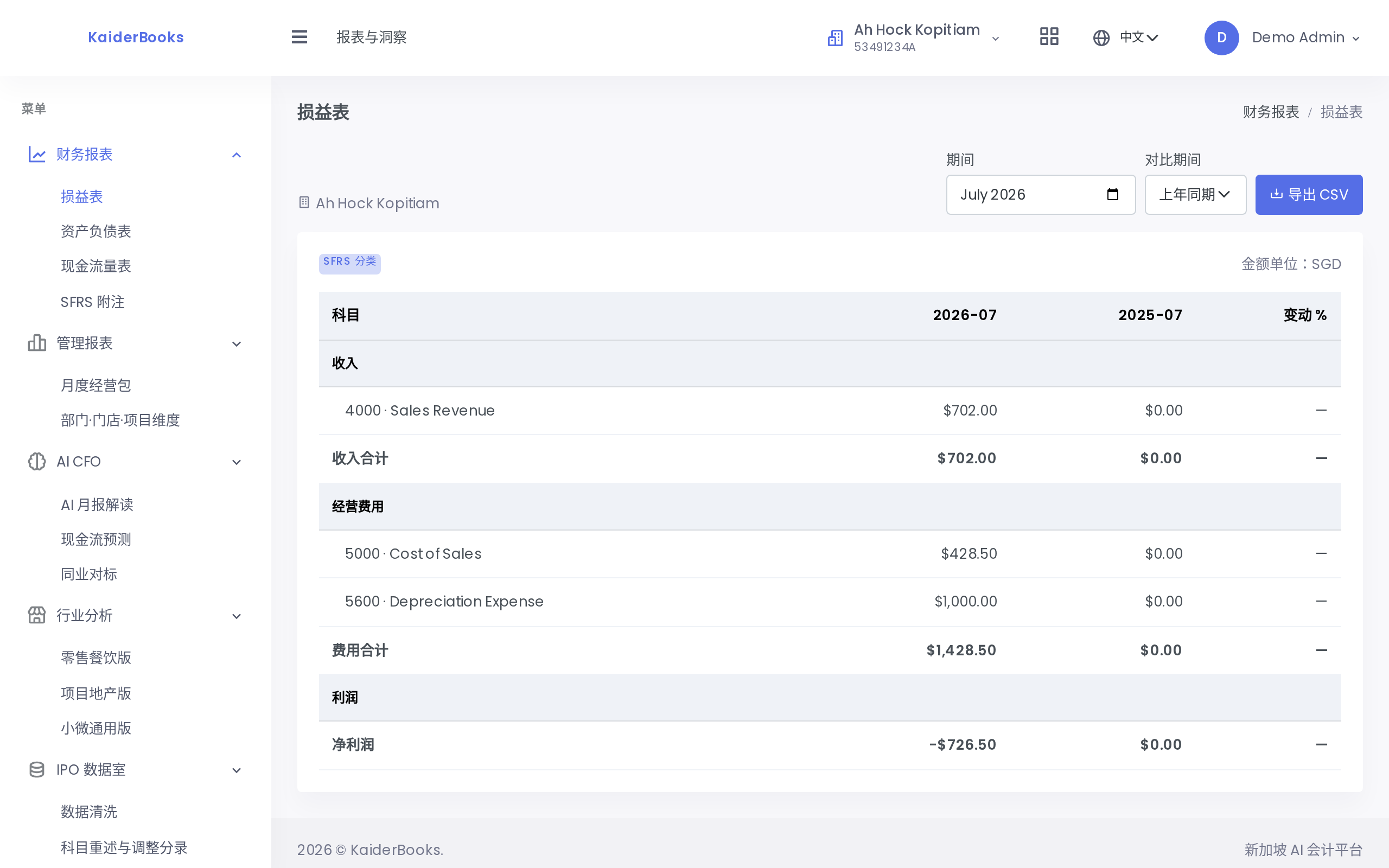
1
Pick a comparison period to add a change % column
Two controls at the top:
| Control | Notes |
|---|---|
| Period | Month selector; the statement covers the month you choose |
| Compare with | Prior year or prior month; selecting one adds a comparison column and a change % |
The change % colours: positive is green, negative is red. That is the direction of the number, not a judgement — rising expenses also show green, so do not read the colour alone.
The table runs Revenue → Operating expenses → Profit, each with account-level rows and a subtotal. Export CSV sits in the top right.
Amounts are in SGD throughout, formatted as $1,234.56.
3. Balance Sheet
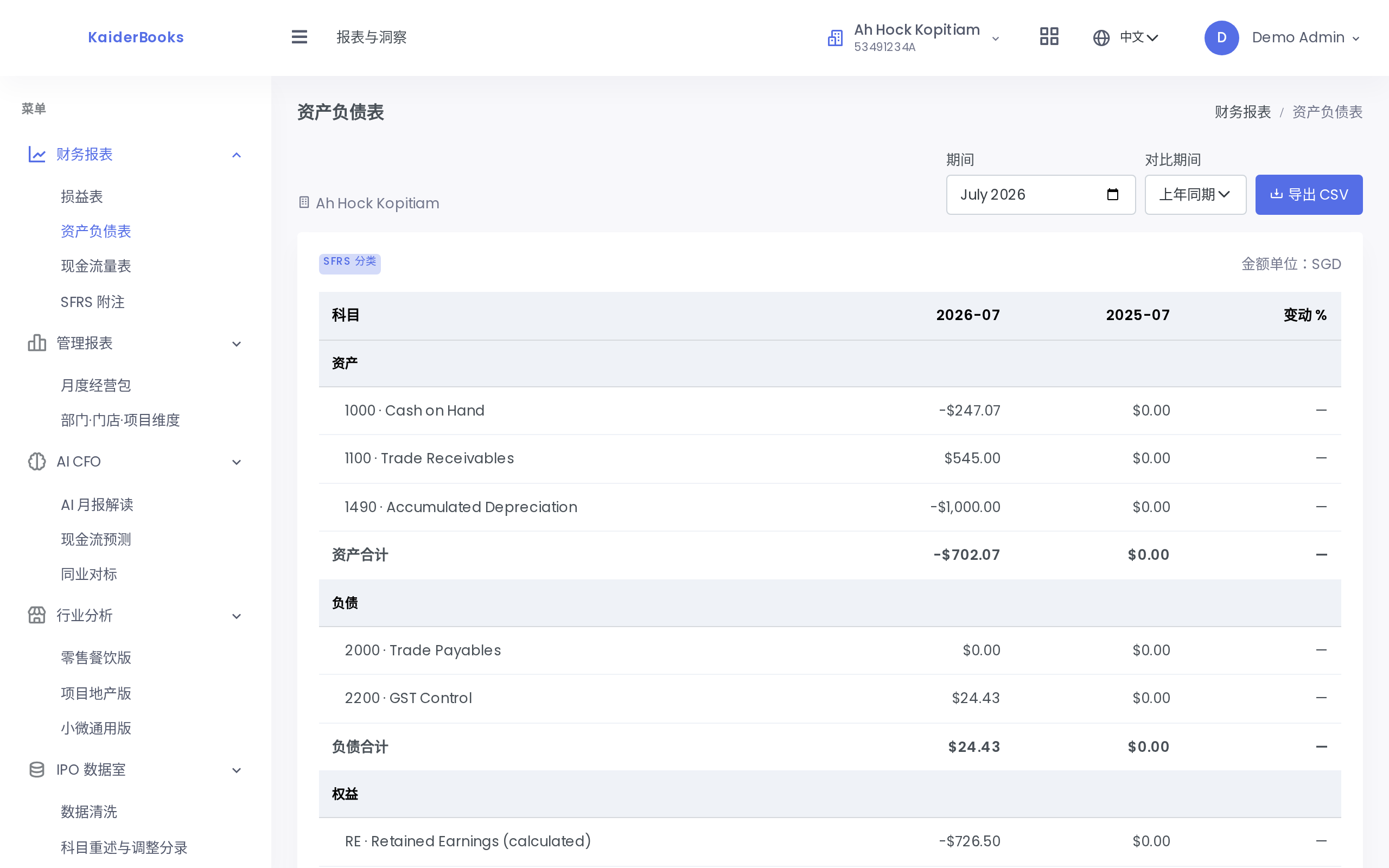
The period control works the same way but selects an as-at date — balances at a point in time, not movements over a period.
Three sections: Assets / Liabilities / Equity.
The balance check row
The last row reads "Balance check: Assets = Liabilities + Equity" and shows Balanced (green) or Out of balance (amber).
This is the accounting equation. It holds under normal circumstances by construction: every journal balances, so any accumulation of them balances too.
Retained earnings is calculated, not an account
The equity section contains a row RE — "Retained Earnings (calculated)". This is not a real ledger account; the system computes it:
Retained earnings = period revenue − period expenses
You will not find it in the chart of accounts and you cannot post to it directly. Its job is to carry the P&L result into the balance sheet so the equation holds.
Why the row exists
Revenue and expense accounts do not appear on the balance sheet, yet the profit they produce belongs to the shareholders and has to show up in equity. The traditional treatment is a period-end journal transferring the balances to a retained earnings account; this system computes and displays the figure directly instead, which removes the journal but keeps the accounting identical.
4. Trial Balance
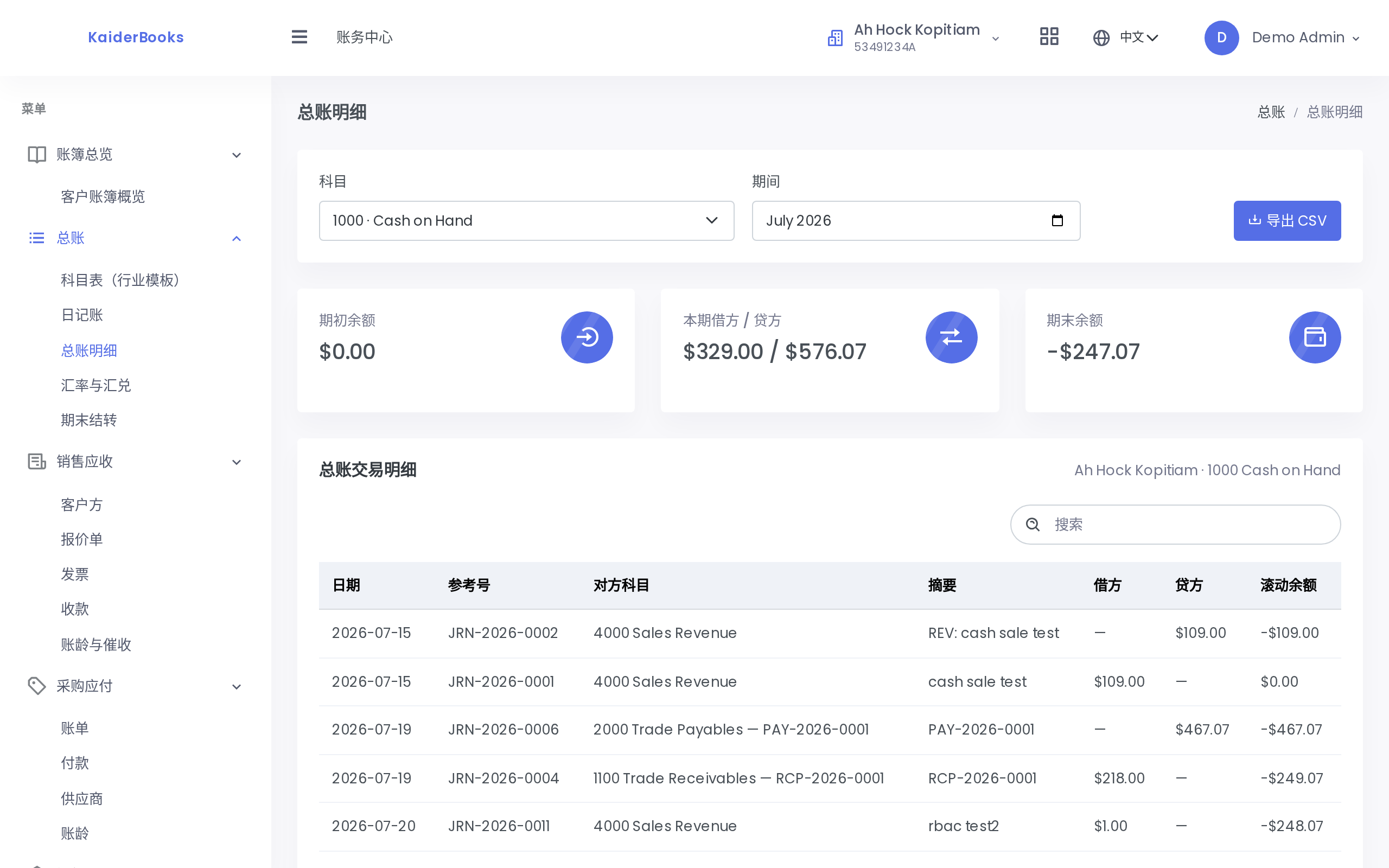
1
Choose an account, then a period, to list every movement
The trial balance lives on Books → General Ledger → Period Close (not under Insights). Choose the period and you get the account count, total debits, total credits, and whether the two agree.
It is mainly for month-end self-checking and the audit file, and it exports to CSV. See Period close and locking.
5. Ledger detail: tracing a figure back
When a number on a statement looks wrong, go to Books → General Ledger → Ledger Detail.
Select an account, then a period — both are required before figures appear. What comes back is every movement on that account for the period:
| Column | Notes |
|---|---|
| Date | Journal date |
| Reference | Voucher number, e.g. JRN-2026-0001 |
| Counterpart | The account on the other side of the entry |
| Description | The journal or line description |
| Debit / Credit | Amounts; a dash where there is none |
| Running balance | Cumulative balance, entry by entry |
Three cards above the table show the opening balance, the period's debit / credit movement, and the closing balance.
The detail table shows 12 rows per page.
The standard audit trail
Figure looks wrong → ledger detail narrows it to an account and period → note the reference number of the suspect entry → search that voucher number in Journals → read the full entry and its source (Manual? Invoice? Depreciation?). The source column tells you immediately whether a person typed it or the system generated it.
6. Exporting and delivery
The three main statements and the trial balance all support Export CSV, covering the currently selected period. The output goes straight into Excel for a client-ready pack or the audit file.
Confirm the period is locked before you deliver
An unlocked period can still change as new journals are posted. Before sending anything to a client or an auditor, make sure that period is locked — otherwise the copy you sent and the system may disagree later.
7. The audit pack and auditor collaboration
Audit support normally needs more than the three primary statements. KaiderBooks also provides three detail reports calculated directly from posted journals and source documents:
| Report | Location | What to check |
|---|---|---|
| AR / AP ageing | Books → Sales & Receivables / Purchases & Payables → Ageing | Select an as-at date; totals reconcile to control accounts 1100 and 2000 |
| Fixed asset register | Books → Fixed Assets → Fixed Asset Register | Cost, posted accumulated depreciation and NBV for every asset; NBV = cost − accumulated depreciation |
| Payroll report | Filing → Payroll & CPF → Payroll Report | Gross pay, employee / employer CPF, SDL and net pay by period, reconciled to that period's payroll journal |
For a single hand-off, go to Insights → Financial Reports → Audit Pack, choose the client, start date and end date, then download the XLSX. Its approximately 12 sheets contain the cover, trial balance, general ledger, P&L, balance sheet, cash flow, AR / AP ageing, fixed assets, payroll, GST F5 and deferred revenue. The amounts use the same reporting basis as the individual reports, so the workbook can go straight into the audit PBC folder.
A clean hand-off sequence
Complete month-end and all reconciliations → lock the period → download the audit pack → invite the auditor. The live books and the delivered workbook will then stay aligned.
Give the external auditor a read-only account
When inviting a user under Admin → Users & Roles, select Auditor. Auditors can inspect the books, open reports, and download individual exports or the audit pack. They cannot create, edit, post or reverse journals; raise invoices; change settings; or lock a period. This lets them perform their own drill-down without sharing an administrator password or giving an external party any write access.
After the engagement, deactivate the account from the same user page. Keep each delivered workbook with its period and generation date. If audit adjustments are posted later, generate a new pack and retain the original delivery rather than overwriting it.
Next: GST and filing →