手册 v0.1.0 · KaiderBooks v2.0.0 · 2026-08-02
Step 1 · Sign in and pick the right company
In one sentence
Sign in with your work email, open Books, and then switch the company at the top to Kaider Academy — skip this and every entry you make lands on someone else's books.
1. Before you sign in: make sure you can reach the site
The system lives at https://books.kaider.sg.
Can't open it? Don't blame yourself
The site sits behind the company firewall (Cloudflare Access). Your email has to be on the allow-list first, otherwise you never even reach the sign-in page.
If you get a blank page, or an unfamiliar page asking for an email and a verification code — you did nothing wrong, the allow-list step just hasn't been done. Ask John; it takes one minute.
The order is fixed: create the account in the system first, then add the email to the allow-list. Doing it the other way round produces "the code worked but the system says I have no access".
2. Signing in (no password — an email code)
Open https://books.kaider.sg. The first screen is not KaiderBooks — it's the Cloudflare gate:
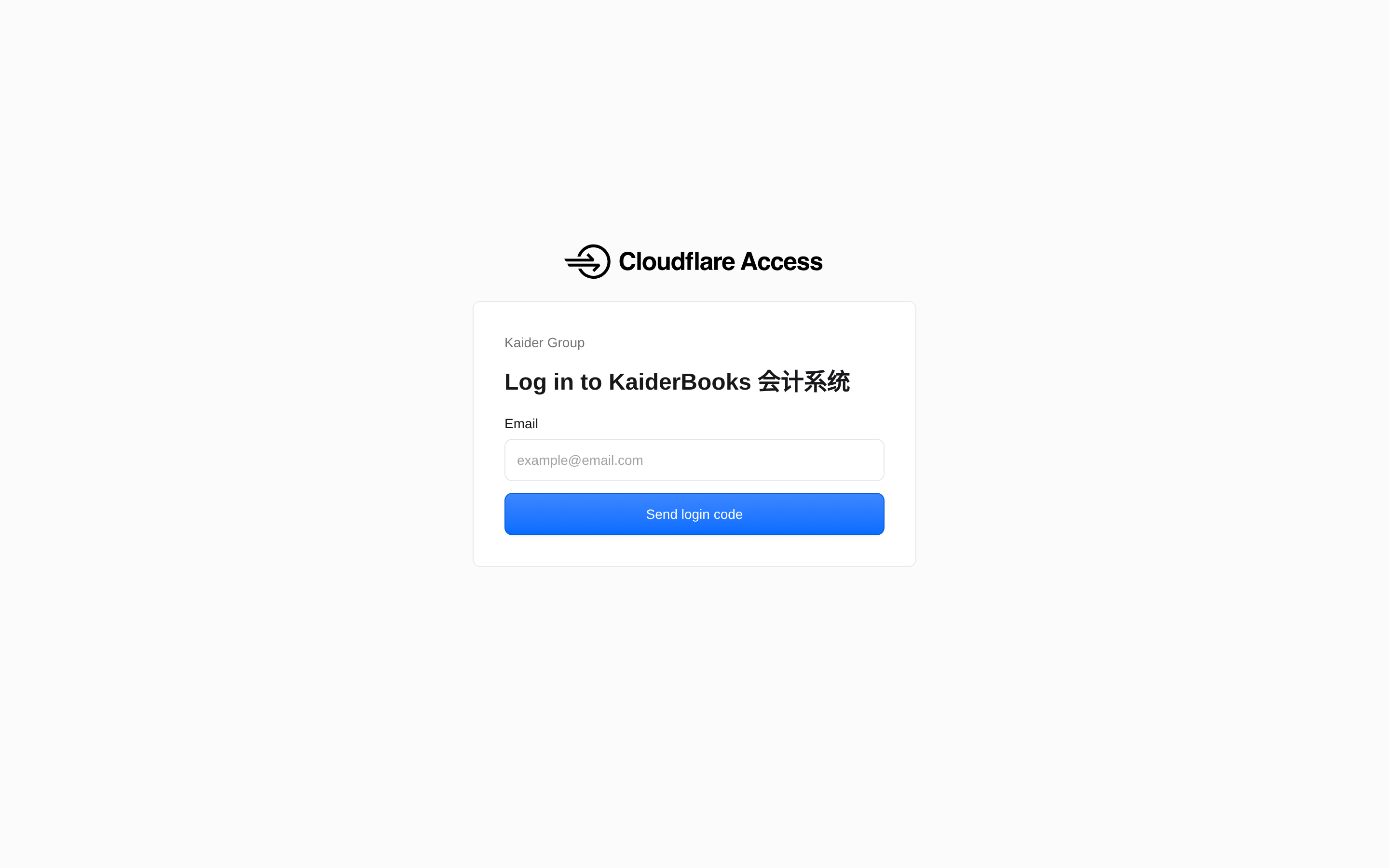
Three steps:
- In Email, enter
jasmindarsingh@kaider.edu.sg - Press Send login code
- Check your inbox for a 6-digit code and enter it
Once through the gate you land straight in KaiderBooks — nothing else to type.
No re-verification for 24 hours
After passing once, you go straight in for 24 hours. A different browser, a different computer, or clearing cookies means doing it once more.
You have no password, and you don't need one
Your account has no password for you to remember. If anyone ever asks "what's the KaiderBooks password" — there isn't one. The sign-in above is the only route.
If it won't open, or it says you have no access after entering your email → ask John. Don't keep retrying.
3. You land on the Launcher
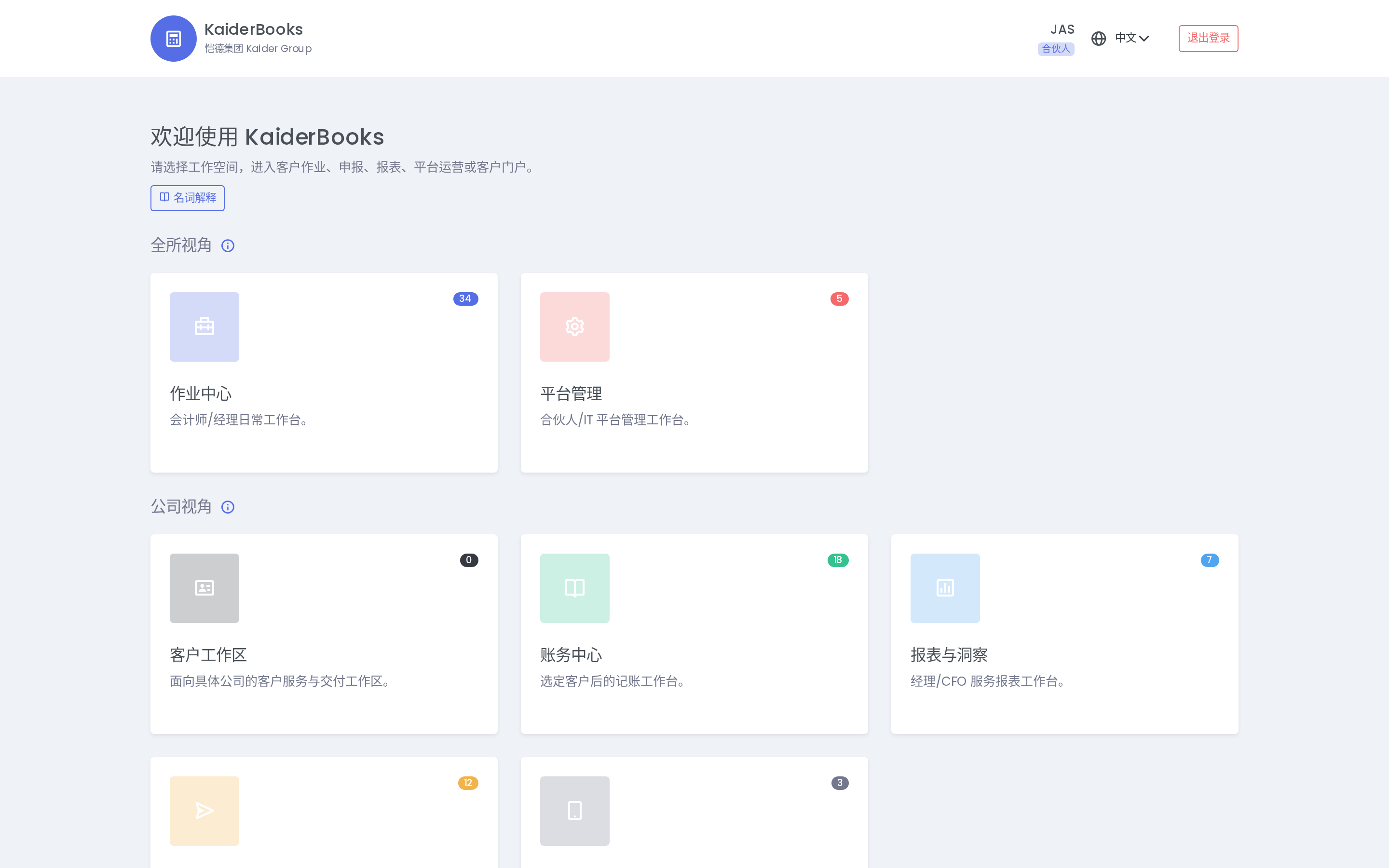
1
Books — where you will spend 90% of your time
2
Payroll lives here (Filing)
Six entries; you only need two:
| Entry | What you do there |
|---|---|
| Books | Record expenses and income, chart of accounts, reconciliation — 90% of your time |
| Filing | Payroll and CPF — once a month |
Ignore the other four (Practice OS / Admin / Insights / Portal) for now.
4. ⚠️ The step people get wrong: switch the company
Once you're in Books, look at the button at the very top. It reads something like:
Kaider Group · JUYI International Consultancy Pte. Ltd.
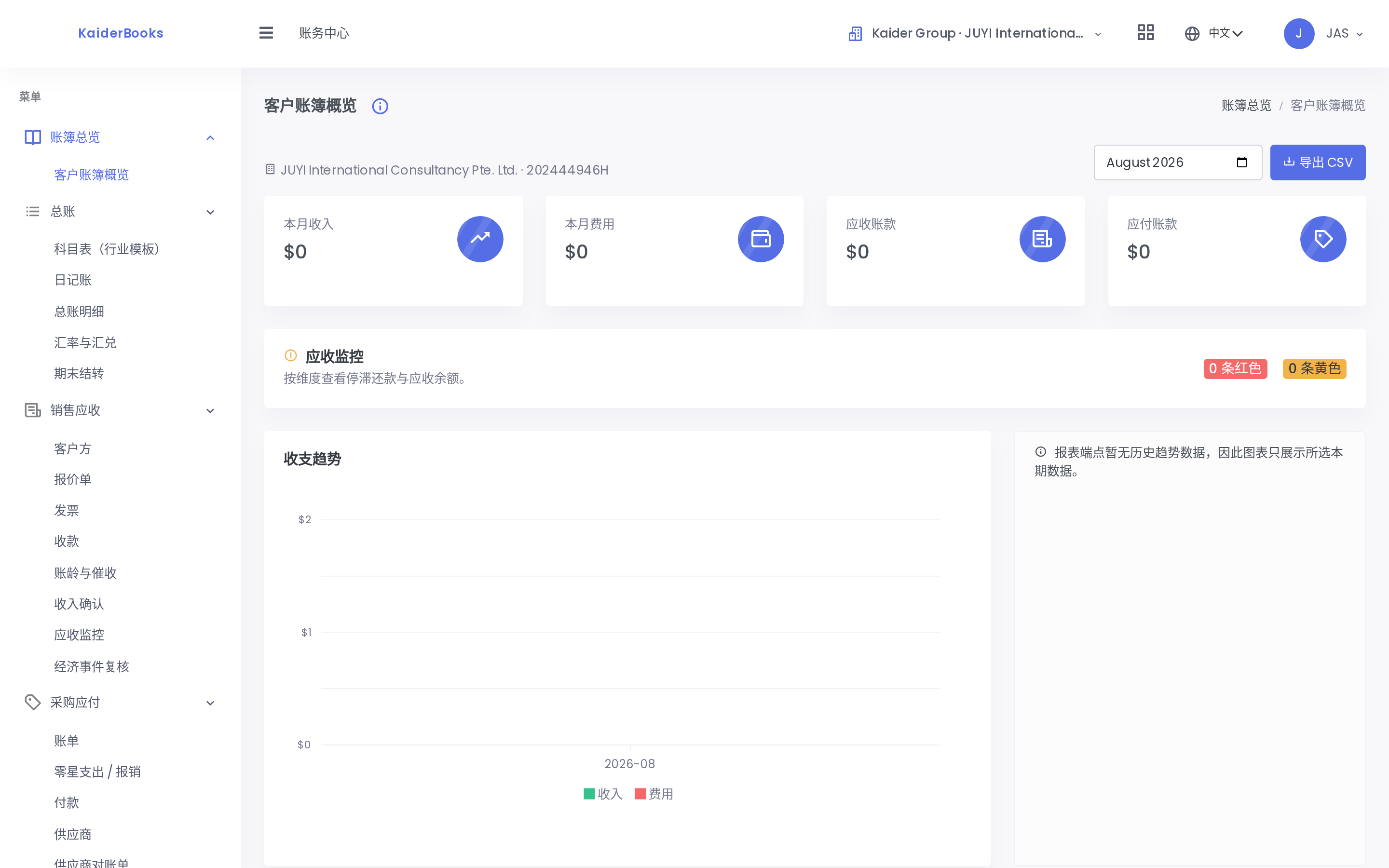
1
🔴 This is it. Click to switch company - confirm it says Kaider Academy before your first entry
2
Grid icon - switch to Admin / Filing and other workspaces
That means you are looking at JUYI's books, not the Academy's.
Click it → choose Kaider Academy Pte. Ltd.
The button should then read Kaider Group · Kaider Academy Pte. Ltd.
Check this every time you start work
The system remembers your last choice. But if you looked at another company in between, or moved to a different computer, it may still be pointing elsewhere.
What happens if you post to the wrong company: the document lands on that company's books. Posted journals cannot be deleted or edited — you have to raise a reversing entry to cancel it, then enter it again. That's the same transaction three times, and all three stay on the books forever.
Build the habit: before your first entry, glance at the top and confirm it says Kaider Academy.
5. Your access level
You are a Partner — the highest role in the system. Nothing will be blocked for lack of permission.
The flip side: you can also change other companies' books. Which is exactly why the habit in section 4 matters more for you than for anyone else.