手册 v0.1.0 · KaiderBooks v2.0.0 · 2026-08-02
Quote to cash
In one sentence
Send a quotation, convert it to an invoice once the customer accepts, post the invoice (which writes the journal for you), then record the payment against it — no manual journal entry anywhere in the chain.
1. The chain at a glance
| Step | You do | The system does | Document status |
|---|---|---|---|
| 1 | Create a quotation | Saves a draft; nothing hits the ledger | Draft |
| 2 | Click Send | Records it as sent | Sent |
| 3 | Customer agrees — click Accept | Marks it accepted | Accepted |
| 4 | Click Convert to invoice | Builds a draft invoice from the quote lines and jumps to Invoices | Quotation: Converted |
| 5 | Review, then Send & Post | Assigns the formal invoice number and posts the journal | Sent |
| 6 | Money arrives — record a receipt | Posts the receipt journal and updates the invoice | Partial / Paid |
Step 5 is the point of no return
Before Send & Post an invoice is a draft you can freely edit or delete. Once posted it has a formal number and a journal behind it, so it can only be voided (which posts a reversing journal) — never edited.
2. Quotations
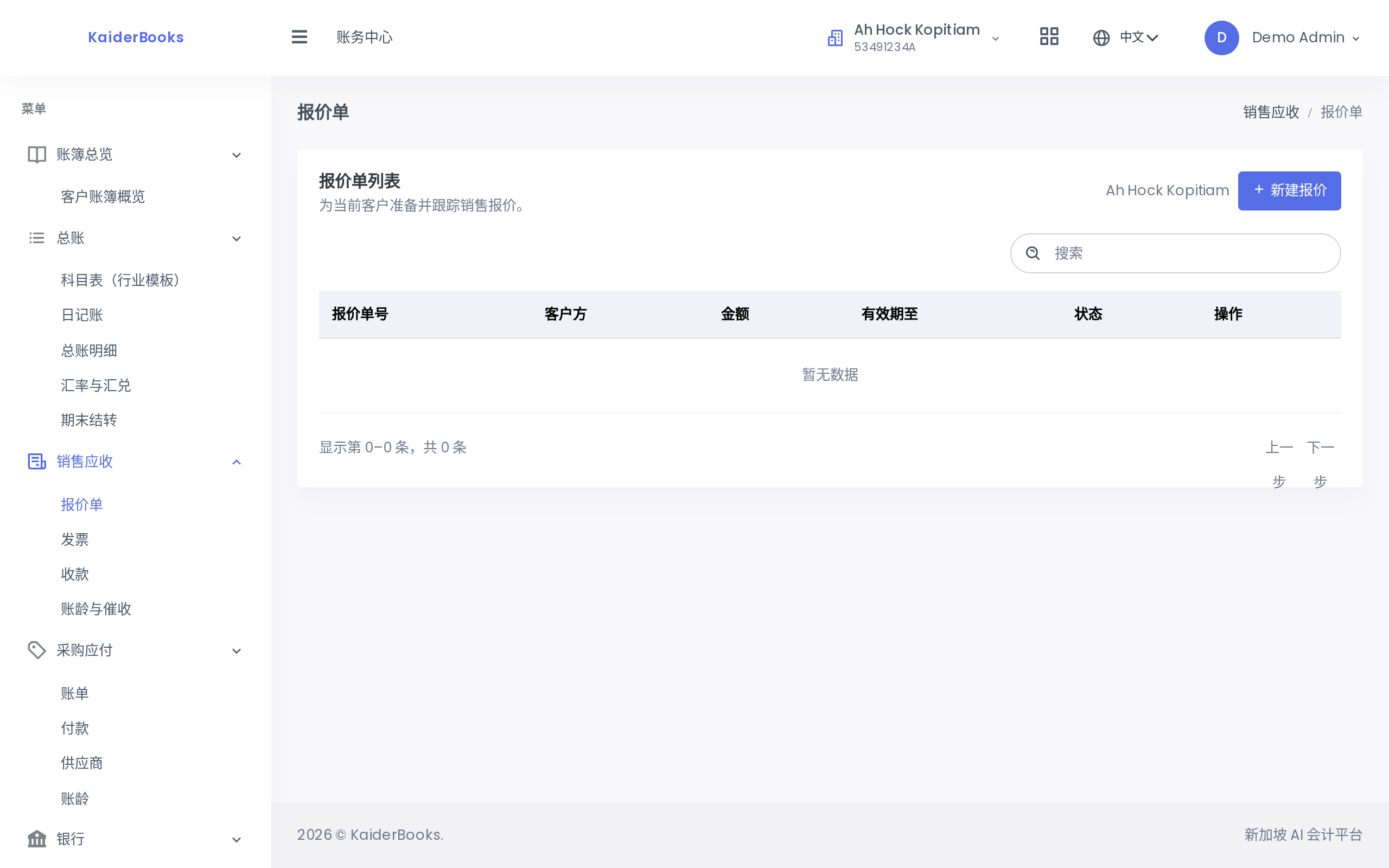
Pick the customer, set the issue date and validity date, then add the line items. Available actions depend on status:
- Draft — Edit / Send / Delete
- Sent — Accept
- Accepted — Convert to invoice
- Converted / Expired — no actions
3. Raising an invoice
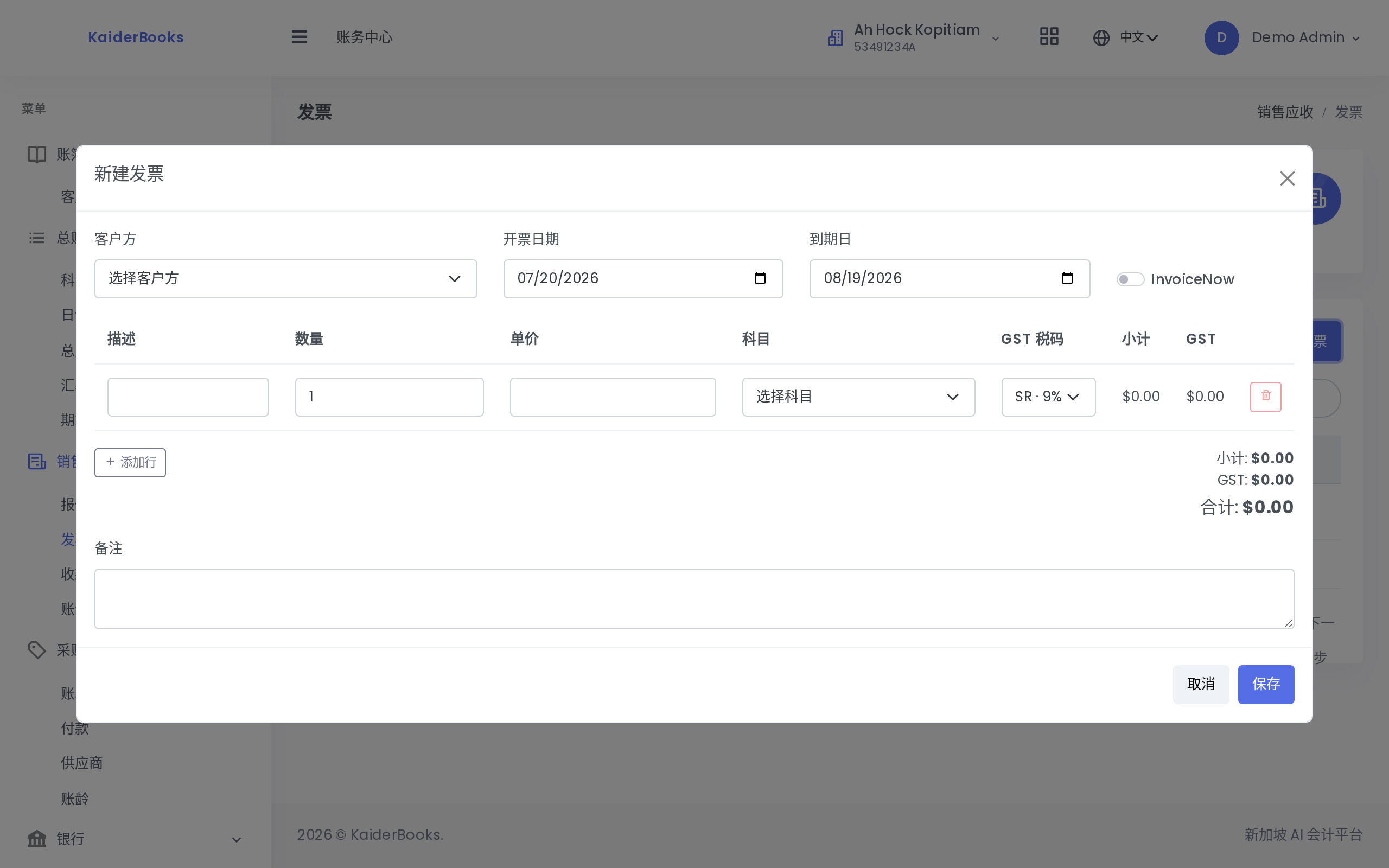
1
Pick the customer first; create one under Contacts if the list is empty
2
Fill one line per item; enter unit price in dollars, stored in cents
3
SR = standard-rated 9%, ZR = zero-rated, ES = exempt
| Field | Notes |
|---|---|
| Customer | Only contacts of kind customer under this client are listed |
| Issue / due date | The due date cannot precede the issue date; it drives aging buckets |
| Line items | Description, quantity, unit price (dollars), revenue account, GST code |
| InvoiceNow | Marks the invoice for the Peppol network (demo flag for now) |
Subtotal, GST and total update live at the bottom right. For "2 × $150 at SR": subtotal $300.00, GST 9% = $27.00, total $327.00.
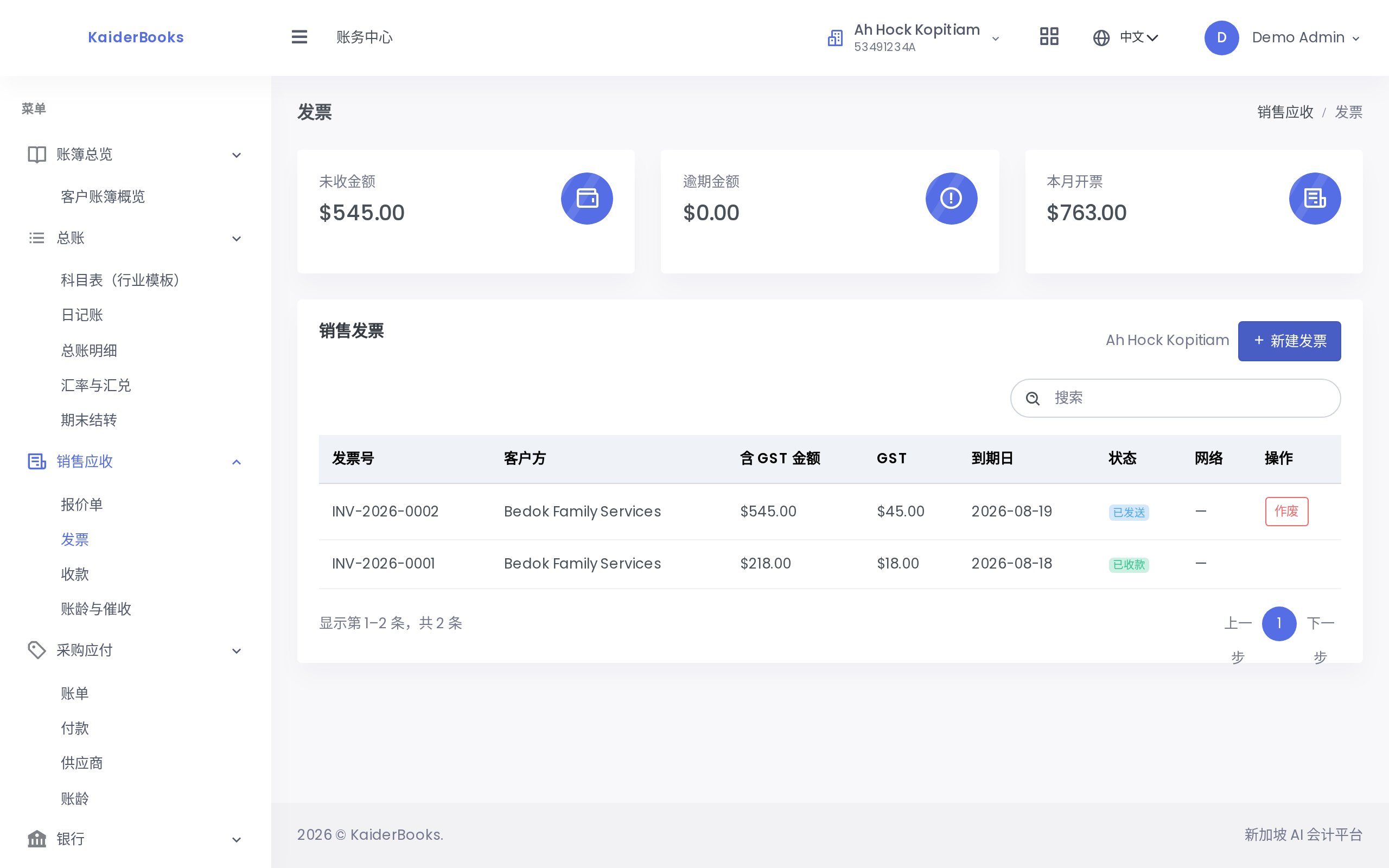
The three cards above the list show outstanding, overdue, and invoiced-this-month totals.
The journal produced by Send & Post
For a $436.00 invoice (subtotal $400 + GST $36):
| Account | Debit | Credit |
|---|---|---|
| 1100 Trade receivables | 436.00 | |
| 4000 Sales revenue | 400.00 | |
| 2200 GST control (output) | 36.00 |
Debits equal credits, the journal is posted immediately, and the figures reach the reports right away.
4. Revenue recognition: deferred tuition and net disbursements
Each invoice line has one of three recognition methods:
| Method | Use it for | When the invoice is posted |
|---|---|---|
| Immediate | Retail, F&B, and one-off services | Credits the selected revenue account immediately |
| Over time | Annual tuition, subscriptions, and retainers | Credits 2250 Deferred Revenue and creates monthly periods over the service dates |
| Disbursement | Government fees collected for a client | Credits 2260 Funds Held on Behalf; it is not revenue and its GST code is locked to ES |
Processing annual tuition
Choose Over time on the invoice line, enter the service start and end dates, then send and post as usual. GST is recognised in full on the invoice date, while the net tuition stays deferred. For S$12,000 of annual tuition plus 9% GST:
| Point in time | Automatic journal |
|---|---|
| Invoice posted | Dr 1100 Receivables S$13,080; Cr 2250 Deferred Revenue S$12,000; Cr 2200 GST S$1,080 |
| Each monthly recognition | Dr 2250 Deferred Revenue S$1,000; Cr Tuition Revenue S$1,000 |
Go to Books → Sales & AR → Revenue recognition, select a month, review the pending preview, then click Recognise revenue. KaiderBooks posts every still-pending period due through that month; running the same month again does not duplicate journals. The deferred revenue table reconciles schedule balances to account 2250. Treat the Reconciled result as the control that both sides agree.
Check the period lock first
Each period posts on that month's final day. If a target month is locked, the whole recognition batch is rejected without partial posting. Resolve the lock rather than bypassing the schedule with a manual journal.
Why an agency disbursement is not revenue
Split the service commission and government fee into separate lines. Use Immediate with SR for the commission, and Disbursement with ES for the government fee. On a S$2,000 commission plus S$800 collected for the government, only S$2,000 reaches revenue; S$800 remains in account 2260 until paid or settled.
Voiding an over-time invoice cancels its schedule, reverses every recognised period, and cancels the remaining periods. Do not add a separate manual reversal, which would duplicate the correction.
5. Receipts and allocation
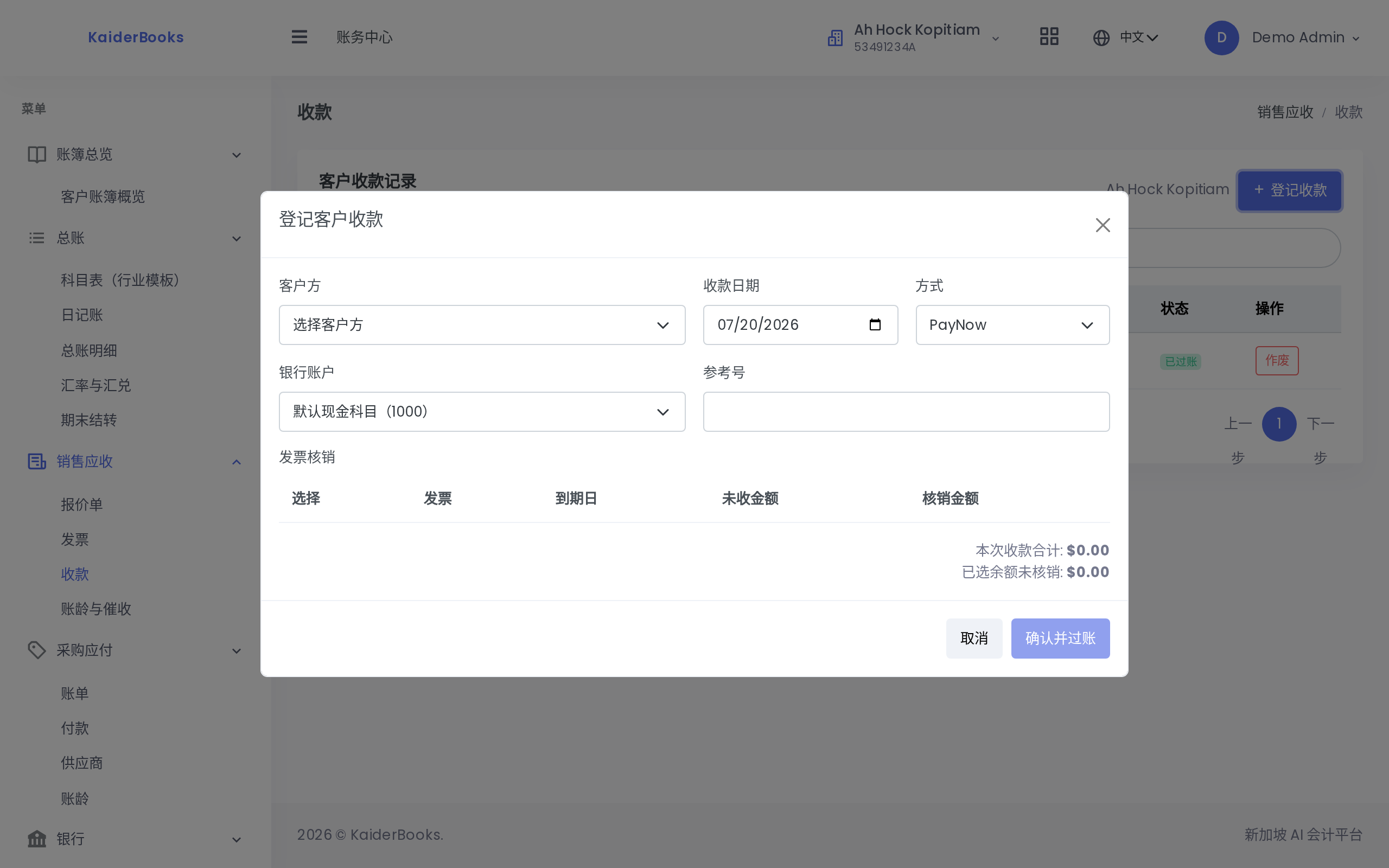
1
Choosing the customer lists all their unpaid invoices below
Choosing a customer lists every sent or partially paid invoice they have. Ticking one fills the amount with its outstanding balance; lower it for a partial payment.
| Field | Notes |
|---|---|
| Method | PayNow / Bank transfer / Cheque / Cash / Card |
| Bank account | Leave empty to use the default cash account (1000) |
| Reference | The bank reference — useful later during reconciliation |
Two totals sit at the bottom: the receipt total (sum of ticked amounts) and the unallocated balance. If the latter turns red you have over-allocated and the confirm button stays disabled.
After posting, the invoice's paid amount updates, its status becomes Partial or Paid, and AR aging drops accordingly.
Recorded the wrong amount?
Click Void on the receipt: the system reverses the receipt journal, rolls the allocation back, and returns the invoice to Sent. Every original record stays for audit.
6. Aging dashboard
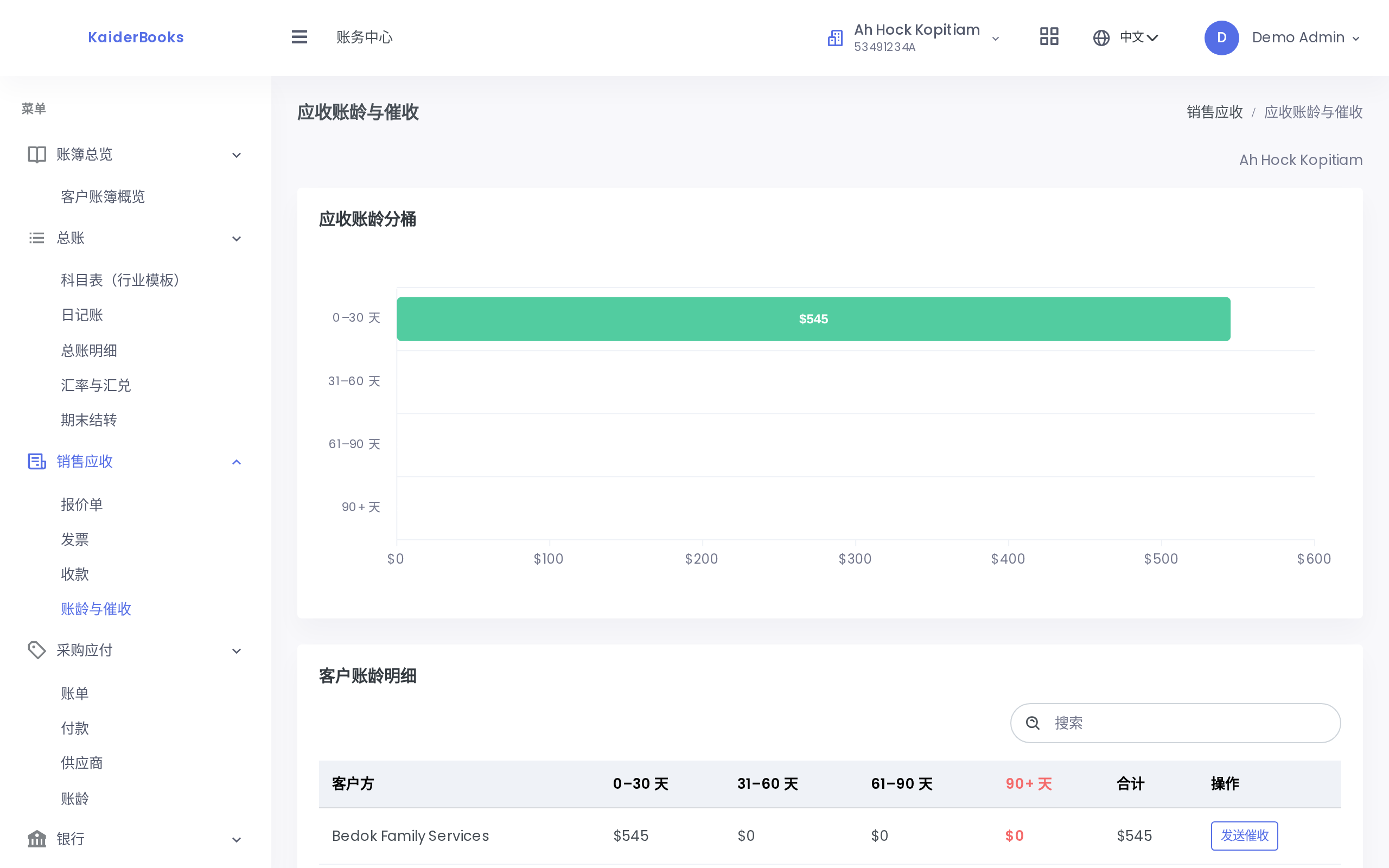
One row per customer, split into four buckets by days overdue (0–30 / 31–60 / 61–90 / 90+). Rows with anything in 90+ turn red, and a reminder button sits on the right.
The data comes from invoices in Sent or Partial status, so a customer disappears from the list once fully paid.
Next: Purchases and payments →