手册 v0.1.0 · KaiderBooks v2.0.0 · 2026-08-02
Step 7 · Payroll and CPF (read before your first run)
In one sentence
Before any payroll run, the CPF rate set from Step 2 must be created and checked against your own table. Whatever the system computes from those rates is what gets posted — if the rates are wrong, entering the correct figures is exactly what gets rejected.
1. 🔴 Mandatory before your first payroll run

1
🔴 Create the 2026 rate set here before any payroll
Books → Settings → CPF rates
You'll see two sets. The one in force is "2026 (CPF official Table 1)":
| Age band | Employee % | Employer % | Total |
|---|---|---|---|
| 55 and below | 20% | 17% | 37% |
| Above 55 to 60 | 18% | 16% | 34% |
| Above 60 to 65 | 12.5% | 12.5% | 25% |
| Above 65 to 70 | 7.5% | 9% | 16.5% |
| Above 70 | 5% | 7.5% | 12.5% |
Monthly ordinary wage ceiling S$8,000; annual total wage ceiling S$102,000.
Entered on 2026-08-02 directly from the CPF Board's CPF Contribution Rate Table from 1 January 2026, Table 1 (SC / SPR 3rd year onwards, total wages > $750).
What you must do: check your own CPF table against the above, band by band. If they agree, proceed. If they don't, don't change anything — check with John which side is stale.
Why you cannot skip this
The rates used to be hard-coded, and when we checked them they were internally inconsistent — the monthly ceiling is the 2026 figure (S$8,000), but the 55–65 bands look like 2025 rates.
Singapore has raised CPF rates for workers above 55 every January since 2022 (the plan is for the 55–60 band to reach parity with under-55 by 2030). So the old numbers are very likely stale.
We deliberately did not change these numbers for you — getting them wrong means underpaying CPF, which carries penalties. You hold the authoritative table; you should be the one to enter it.
And the system enforces it: the CPF on a payslip must match what the system computes from the rates to the cent, or it is rejected. So if the rates are wrong, entering the correct figures is exactly what gets blocked — when that happens, don't doubt your arithmetic, come back to this page first.
Enter values as percentages (e.g. 20 for 20%) — no conversion needed.
2. Create a payroll run
1
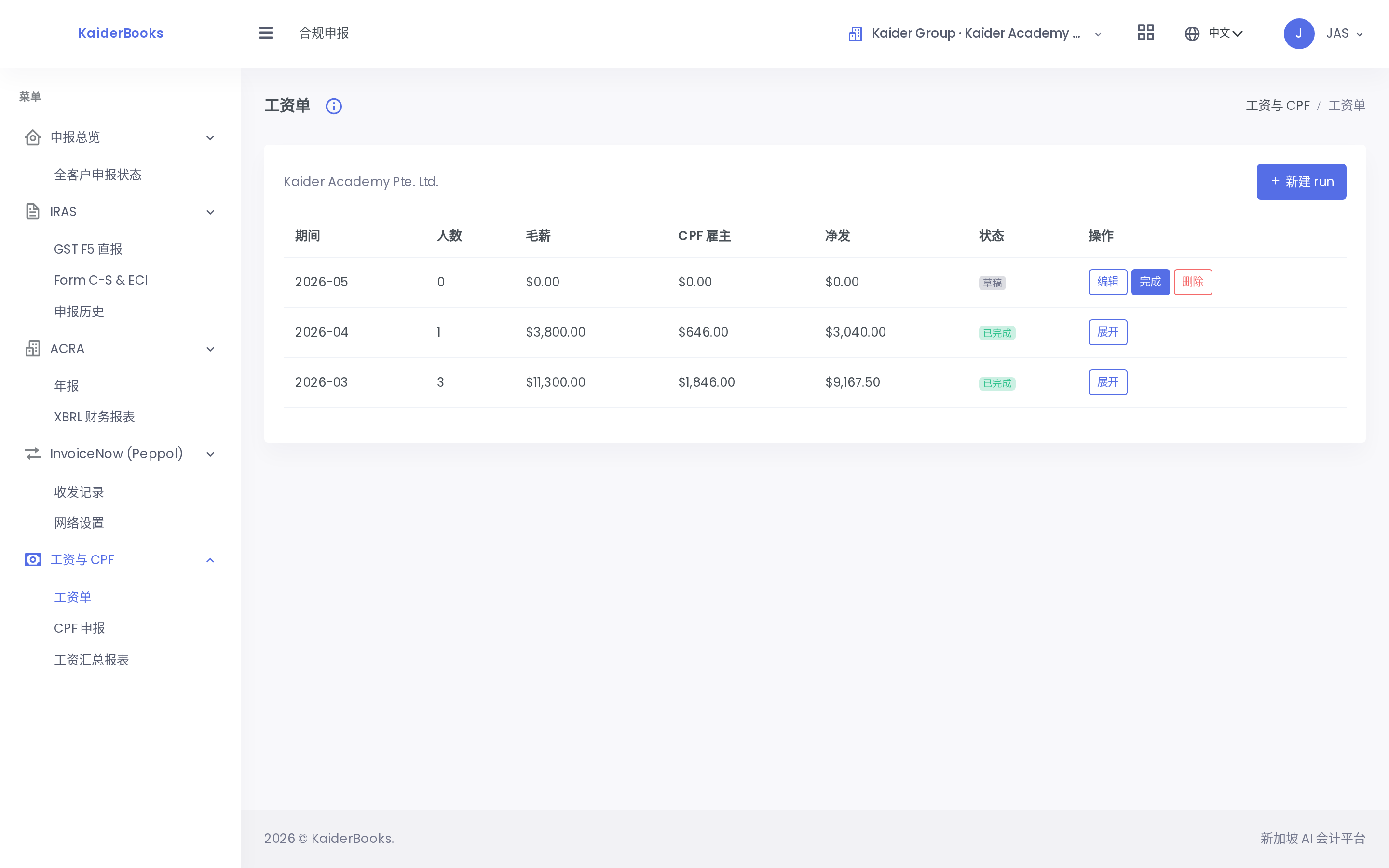
One run = one month of payroll
Filing → Payroll → Payroll Runs → New
One run = one month. Period format 2026-03.
3. Add each employee
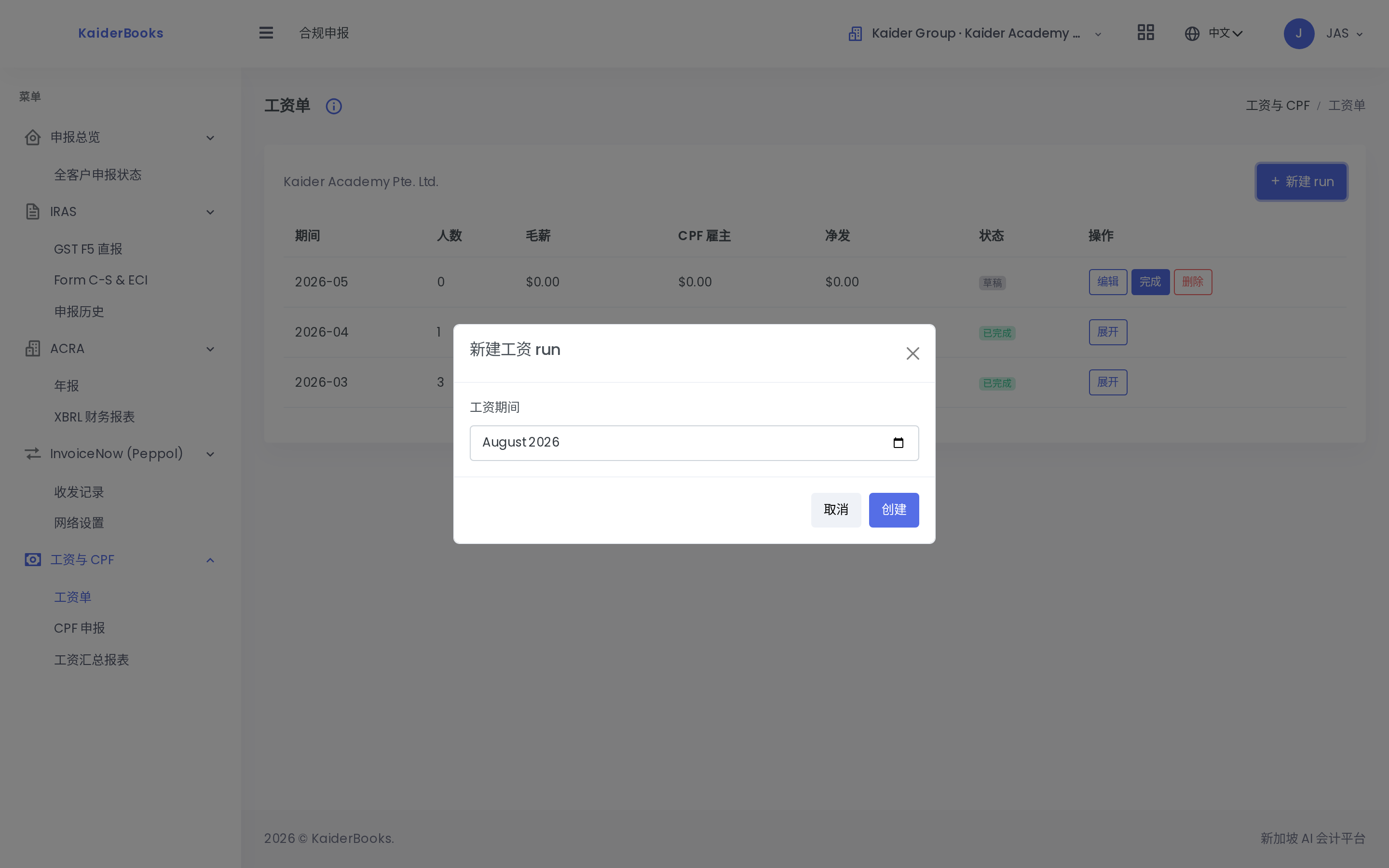
Click Edit on the run row; a Payslips panel appears below. Click Add payslip.
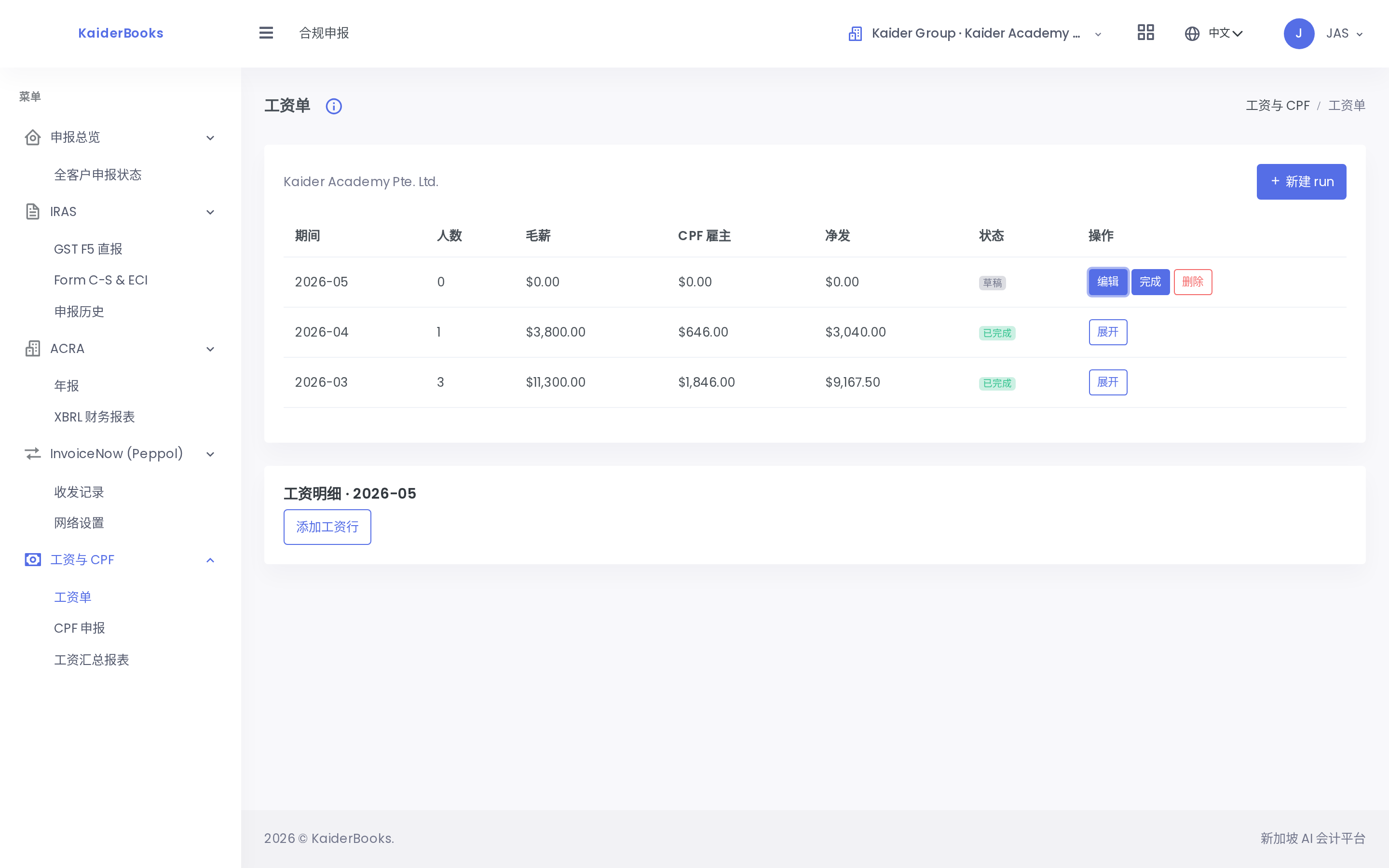
You only fill four fields:
| Field | Notes |
|---|---|
| Name | |
| Age band | 🔴 Use the employee's actual age — it directly drives the CPF deduction |
| Ordinary wage | Basic pay for the month |
| Additional wage | Bonus, overtime (0 if none) |
CPF is calculated for you — don't compute it yourself
As soon as you enter the wage, the panel shows, live:
Employee CPF: 760.00 Employer CPF: 646.00 Net pay: 3040.00
Those three come from the rate table you maintained in section 1. There are no input fields for them and you cannot override them.
Which is exactly why section 1 matters so much — whatever the system computes is what gets posted. Wrong rates produce wrong figures here, silently. So on your first run, check these three against your own calculation.
Press Save. The row is stored and a fresh blank form appears for the next person.
What a wrong age band costs
A real example from our testing:
A 62-year-old part-time teacher on $1,500/month
- Correct (60–65 band, employee 12.5%) → employee CPF $187.00, net $1,313.00
- Wrong (under-55, employee 20%) → employee CPF $300.00, net $1,200.00
$113.00 over-deducted from the employee's pay. They will notice immediately.
Use the age in the month being paid; watch the month an employee's birthday crosses a band.
4. Complete the run
Once every employee is in and the figures check out, go back to the run row and press Complete. A confirmation appears:
Complete payroll run — Completing 2026-04 will post the payroll journal. The run and payslips will become read-only.
You must press Complete inside the dialog for it to take effect.
Only then does it hit the books. For our three test employees (6,000 / 3,800 / 1,500):
| What the system books | Amount |
|---|---|
Dr 5100 Salaries | $11,300.00 |
Dr 5200 Employer CPF | $1,854.00 |
Cr 2300 CPF payable | $4,001.00 |
Cr 2310 Salaries payable | $9,153.00 |
In plain words:
- The month's staff cost is $11,300 + $1,854 = $13,154 (employer CPF is a cost too)
- $9,153.00 goes to the employees
- $4,001.00 goes to the CPF Board (employee $2,147.00 + employer $1,854.00)
5. What happens next
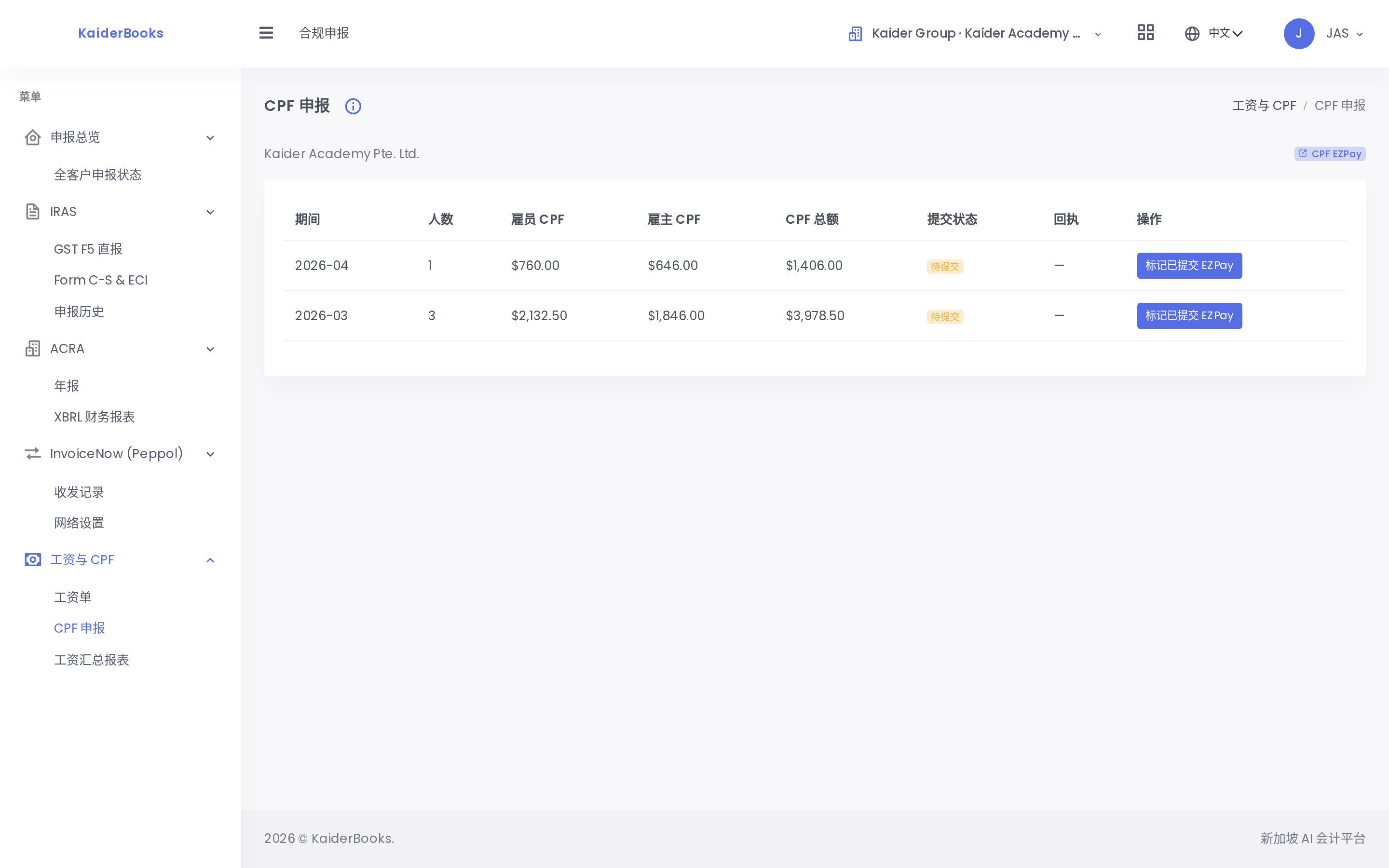
Filing → Payroll → CPF summarises the CPF due for the month, to check against the CPF Board statement.
The system does not pay anything
It calculates and records. The actual transfers — salaries to staff, CPF to the Board — still happen in internet banking.
CPF is due by the 14th of the following month. Late payment attracts interest and penalties.
Once paid, clear the two payables: record a payment against 2310 for salaries, and against 2300 for CPF. Confirm the exact process with John before you do this the first month.
6. For your first run, do it this way
- Verify the CPF rates (section 1) — do not proceed until this is done
- Add one employee only, Complete, and check the journal
- Compare the system's CPF against your own calculation — to the cent
- Once it matches, add the rest
If it doesn't match
Don't fudge the numbers to make it fit. Check three things first:
- Is the age band right?
- Is the CPF rate table right?
- Are ordinary and additional wages split correctly? (Bonuses are additional wages — the ceiling rules differ.)
Still not matching after all three — stop and ask John. Don't guess.